
The building blocks
Nội dung này chưa có bản dịch Tiếng Việt, hiển thị bằng Tiếng Anh.
Every use case on iMBrace, however different they look, is built from the same five things: a board, an agent, a document model, a workflow and a channel. This page names each one, says what it is for, and shows where it lives in the product, so that nothing on the sidebar is a mystery the first time you open a training organisation. It closes with three ways to extend one of these or hand it on to someone else: skills, the MCP connection, and installing a module.
A board
A board is a structured table you shape yourself - rows and typed columns, like a lightweight CRM sheet. It is for holding whatever a build needs to remember: a list of return requests, a priced quotation, a set of rules a person can edit.
In the sidebar this lives under Knowledge > DataIQ (the SDK and its permission scope call it a board, or a databoard; the product name on screen is DataIQ). Every other block reads or writes a board: a workflow’s steps, an agent’s one narrow tool, and a document model’s own extraction all land on one.
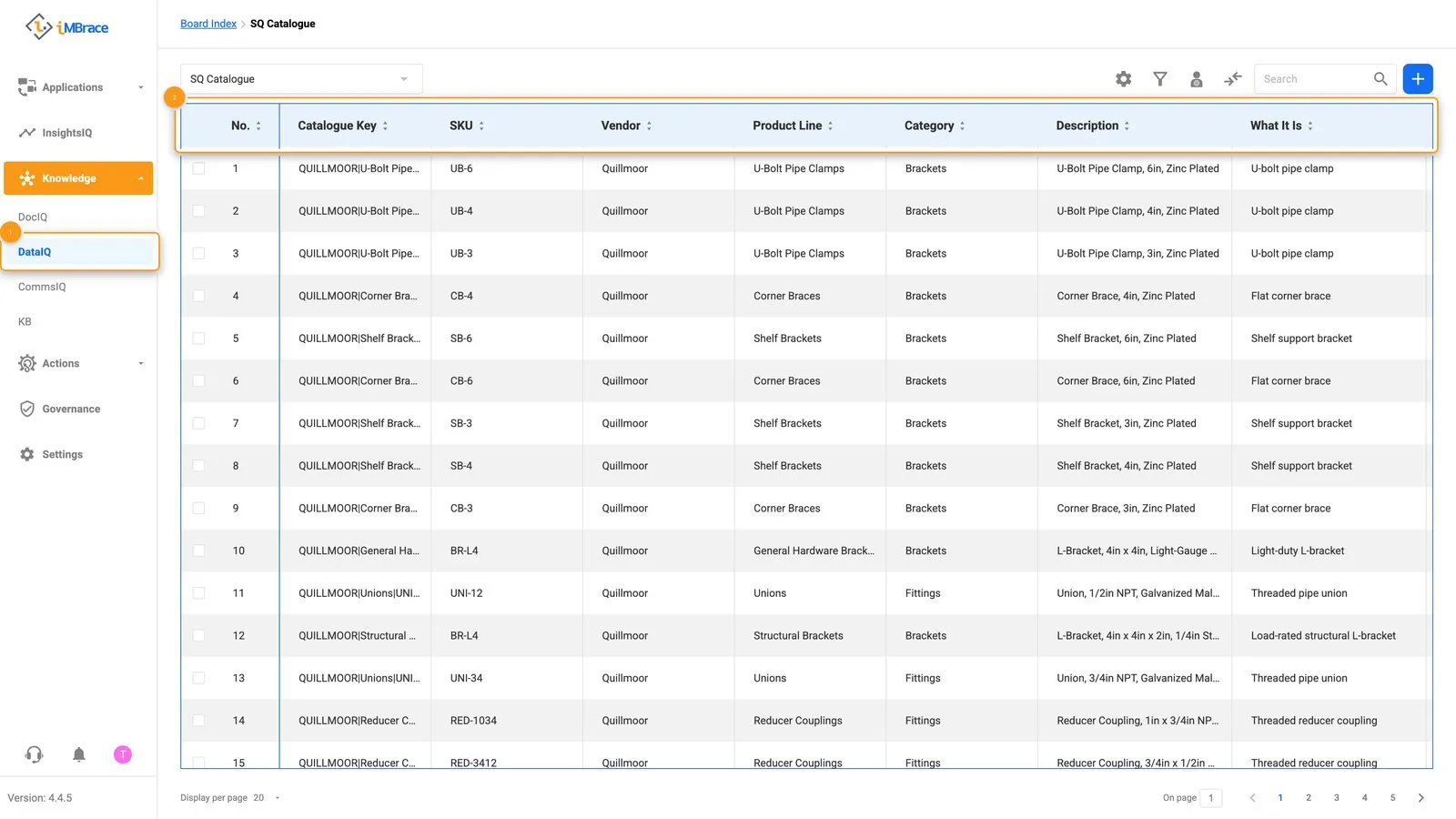 1 Knowledge > DataIQ in the sidebar. 2 The board’s typed columns.
The habit that makes a board trustworthy: put a rule a business person might need to change - a threshold, a rate, a limit - on a board as an editable row, never inside an agent’s own instructions. The eight principles explains why.
Do it in code: Board.
An agent
An agent is the conversational front end a person or a channel talks to. It is for having the conversation itself: understanding what someone is asking for, and calling the right tool to act on it.
In the sidebar this lives under Actions > AgentIQ. An agent is reached through a channel, and it acts by calling a workflow - one of its skills, covered below - which is where any reading or writing of a board actually happens.
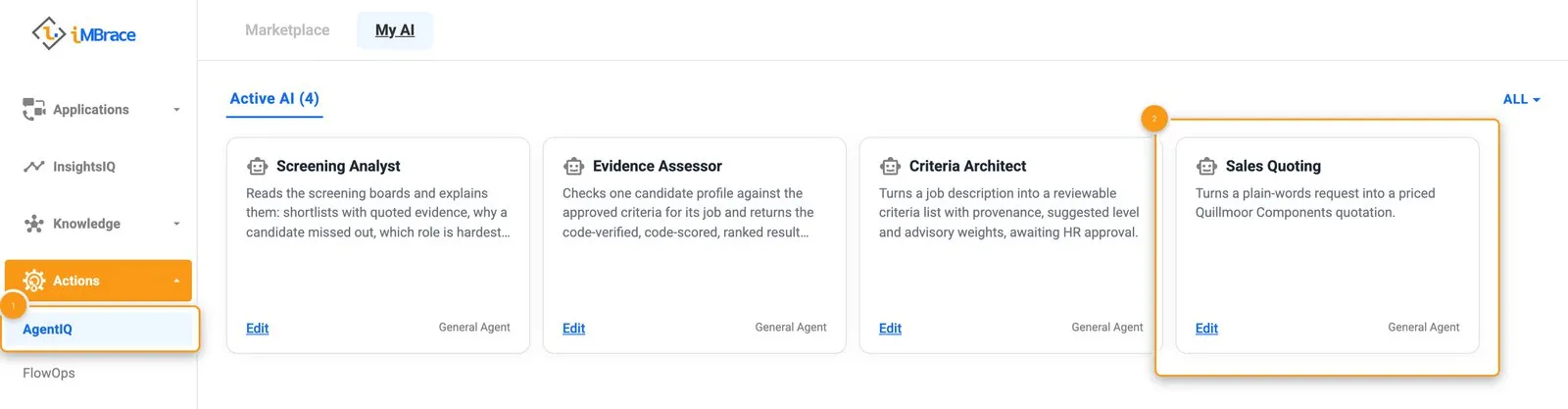 1 Actions > AgentIQ in the sidebar. 2 The Sales Quoting agent’s card.
The habit that makes an agent trustworthy: give it one narrow tool for the one thing it must do, never the whole board, so it can log a request but can never write the decision that approves it. Human approval sets out why the agent must never be able to write that decision itself.
Do it in code: AI agent.
A document model
A document model tells extraction what to pull out of a file. It is for turning an unstructured document - an invoice, a form, a scanned packing slip - into the structured fields a board can hold.
In the sidebar this lives under Knowledge > DocIQ, on the Document Models tab. What it extracts lands as rows on a board, the same board a workflow or an agent then reads.
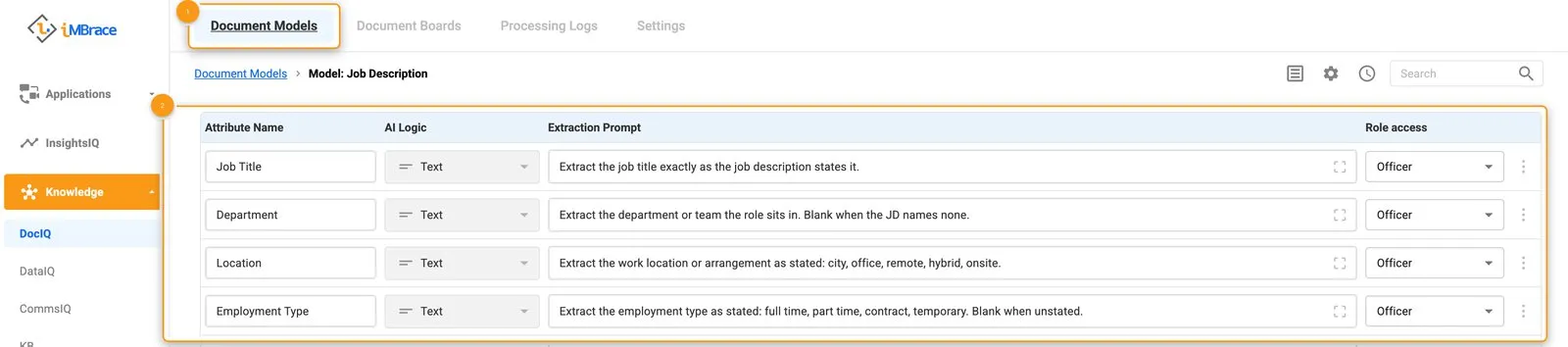 1 The Document Models tab. 2 The model’s fields table.
The habit that makes a document model trustworthy: adopt the platform’s own default model before writing a new one, and point extraction at a single board’s own fields rather than leaving the choice of model to chance. Document models sets out the order to try them in.
Do it in code: Document AI.
A workflow
A workflow (also called a flow) is a sequence of steps that runs on its own once triggered. It is for doing the actual work, in a fixed and checkable order: reading a board, running a calculation, waiting for a person to decide, sending a message.
In the sidebar this lives under Actions > FlowOps (the SDK and its permission scope call it a workflow; the product name on screen is FlowOps). A workflow reads and writes a board, can be the one tool an agent calls, and can start from a channel event as easily as from a board changing.
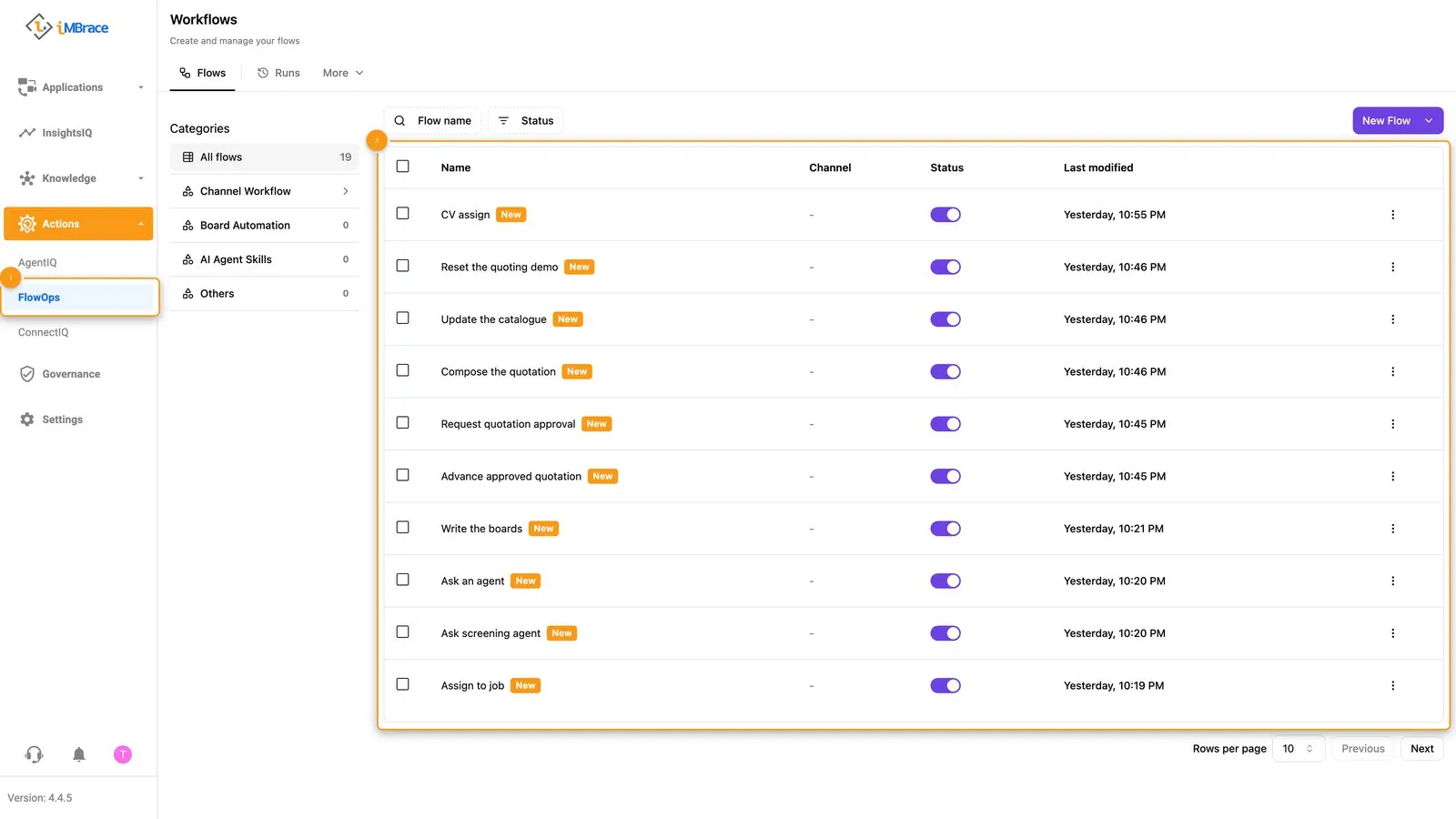 1 Actions > FlowOps in the sidebar. 2 The list of workflows.
The habit that makes a workflow trustworthy: build it from the platform’s own ready-made steps first, and keep any step you do write pure - it computes over the values it is given and holds no credential of its own. Native-first sets out what that buys you.
Do it in code: Workflow.
A channel
A channel is where a person actually reaches an agent - a website chat widget, WhatsApp, email, or another connected messaging app - and it is the address a reply goes back to.
In the sidebar this lives under Actions > ConnectIQ, on the Channels tab. A channel is how a conversation with an agent begins, and a workflow can use one of its events as its own trigger.
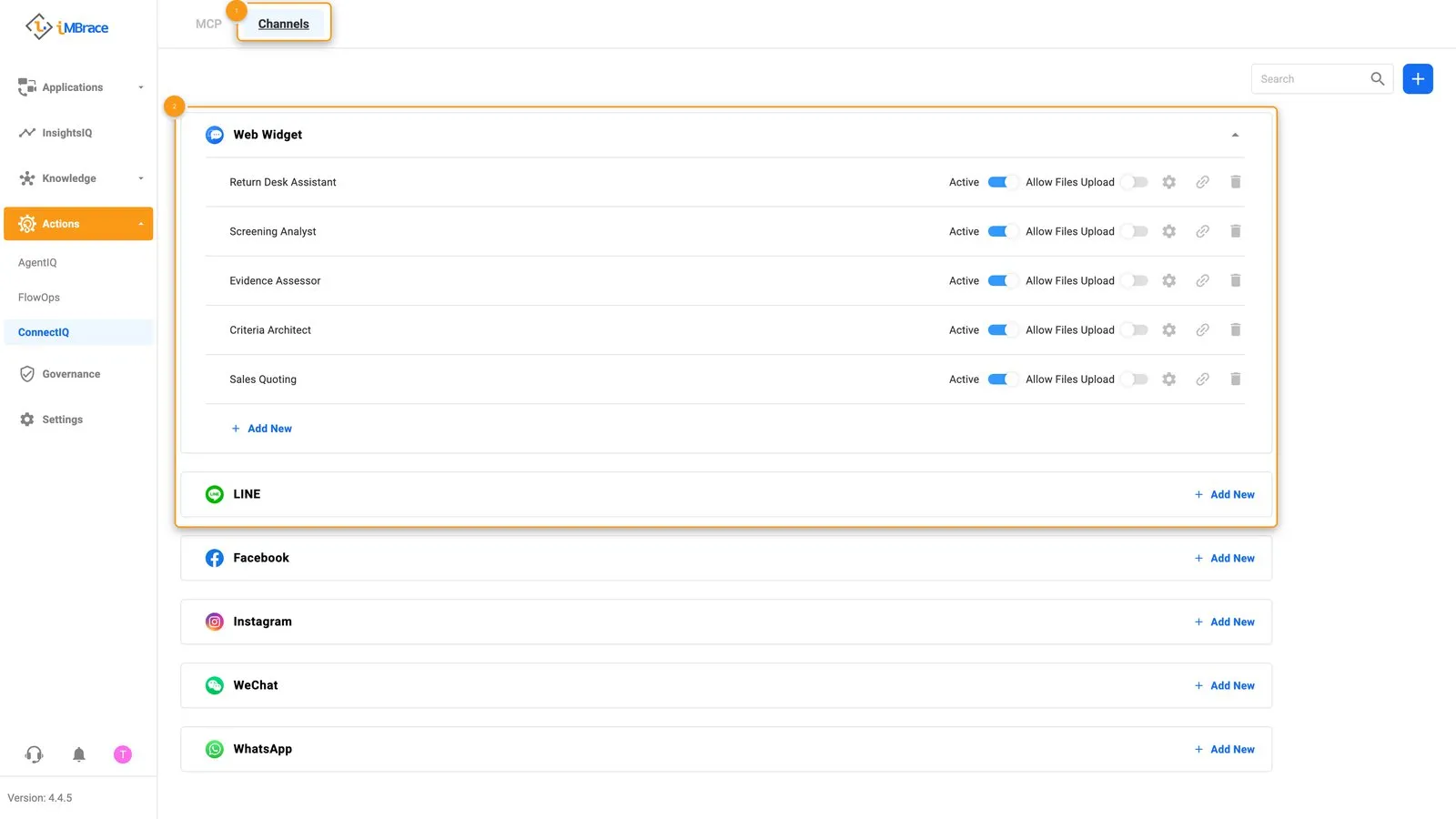 1 The Channels tab. 2 The Web Widget’s channel list.
The habit that makes a channel trustworthy: set up its login once as the organisation’s own connection, never as a value sitting inside a workflow. A connection that needs someone’s sign-in, such as a hosted mail service, is made by a person once per organisation; a mail-server connection is configured once with the server’s own details. Native-first sets out why nothing in a flow should ever carry a credential.
Do it in code: Channel.
Three ways to extend and deliver them
Skills - what an agent can do
A skill is a workflow given to an agent as a named tool it can call. It is for extending what an agent can actually do beyond talking - logging a row, looking something up, running a calculation - always through a workflow, never by handing the agent a board directly.
In an agent’s setup under AgentIQ, skills sit on the Behavior Settings tab, in its Skills section (the SDK’s full flow guide calls these tools, under Workflows). Add a workflow here and the agent can call it in a conversation; its description is what the agent reads to decide when that is the right moment.
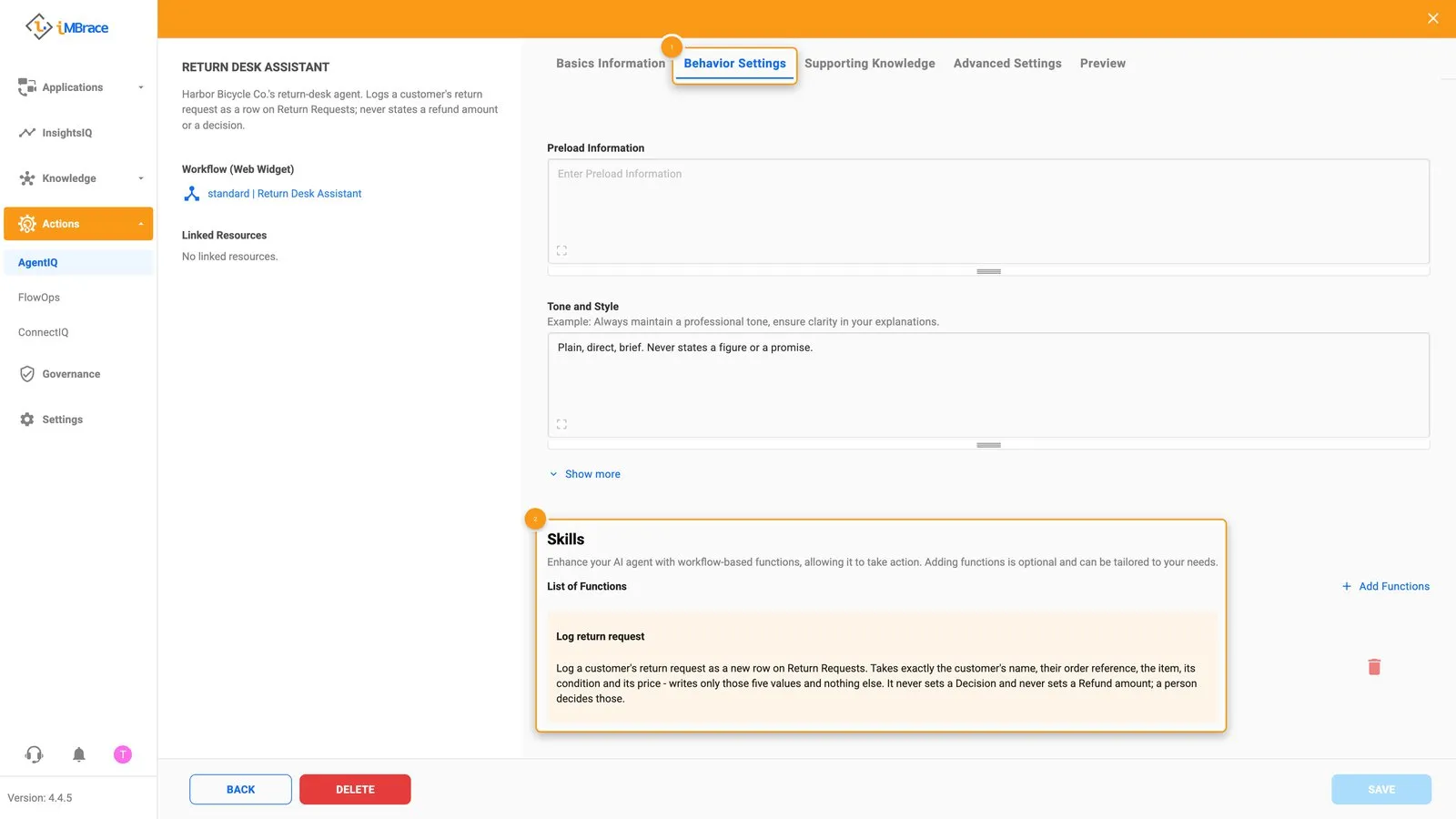 1 The Behavior Settings tab. 2 The Skills section’s list of functions.
Do it in code: Full Flow Guide.
The MCP connection - how a coding tool sees an organisation
The MCP connection is how an AI coding tool sees and changes an organisation directly, rather than being told about it secondhand. It is for building: point a coding tool at it with an address and a key, and it can list what boards and workflows already exist before writing a line of anything.
In the sidebar this lives under Actions > ConnectIQ, on the MCP tab, and it opens the very guide you would read directly at engineer.imbrace.co/mcp/overview. Set up your coding tool walks through connecting a coding tool to a test organisation this way, step by step.
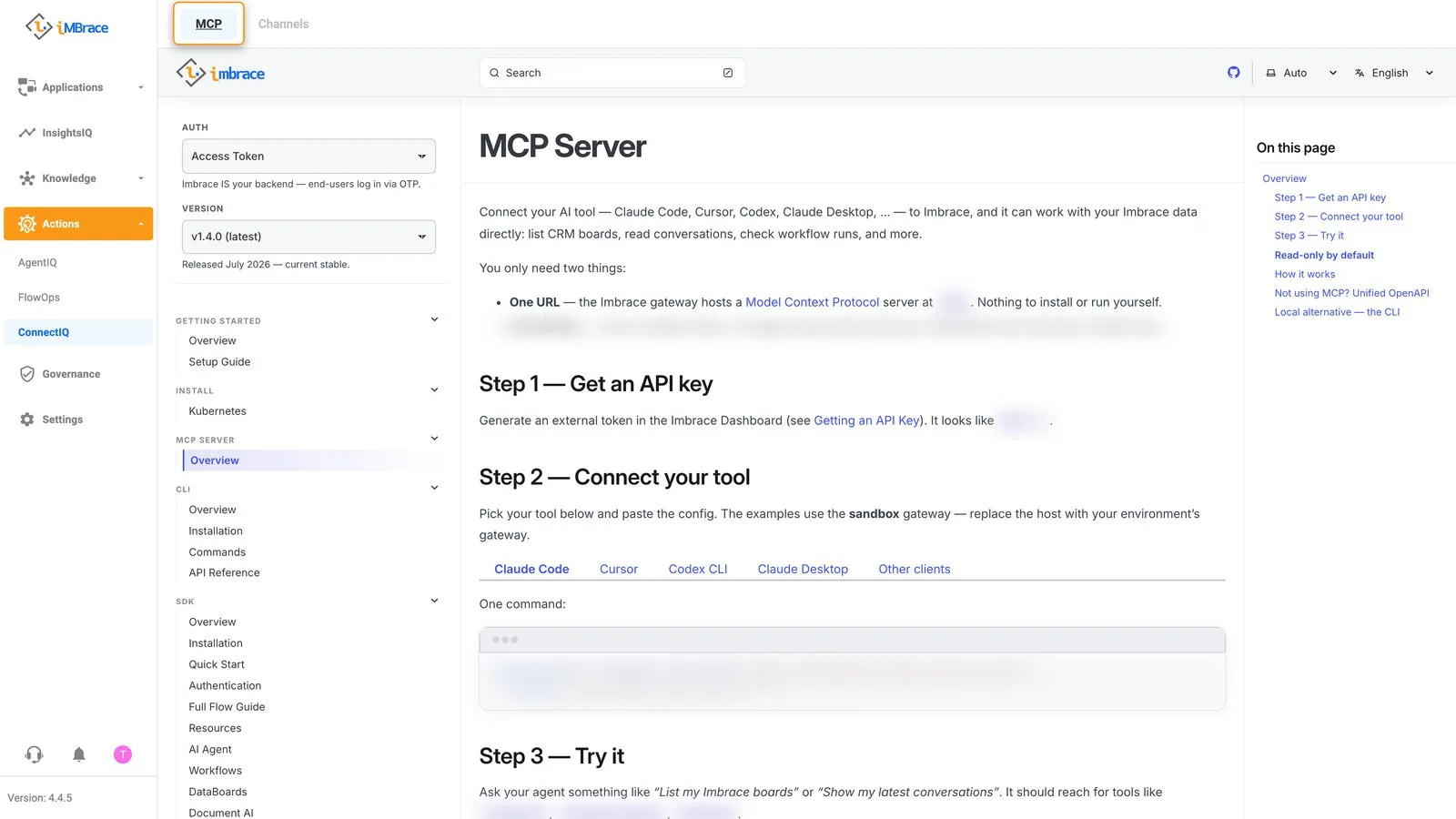 ConnectIQ MCP tab opening the MCP connection guide
Do it in code: MCP Server guide.
Installing a module
Installing a module copies a whole use case - its workflows, its agent set-up and its boards - into an organisation in one step, as a single package. It hands someone a working starting point instead of a set of instructions to follow by hand. Your iMBrace contact installs modules into your organisation.
Once installed, its boards, workflows and agent appear in their usual screens - DataIQ, FlowOps and AgentIQ - where an admin can see and edit them like anything else in the organisation. For a single agent, AgentIQ also has a Marketplace tab of ready-made agent templates to start from.
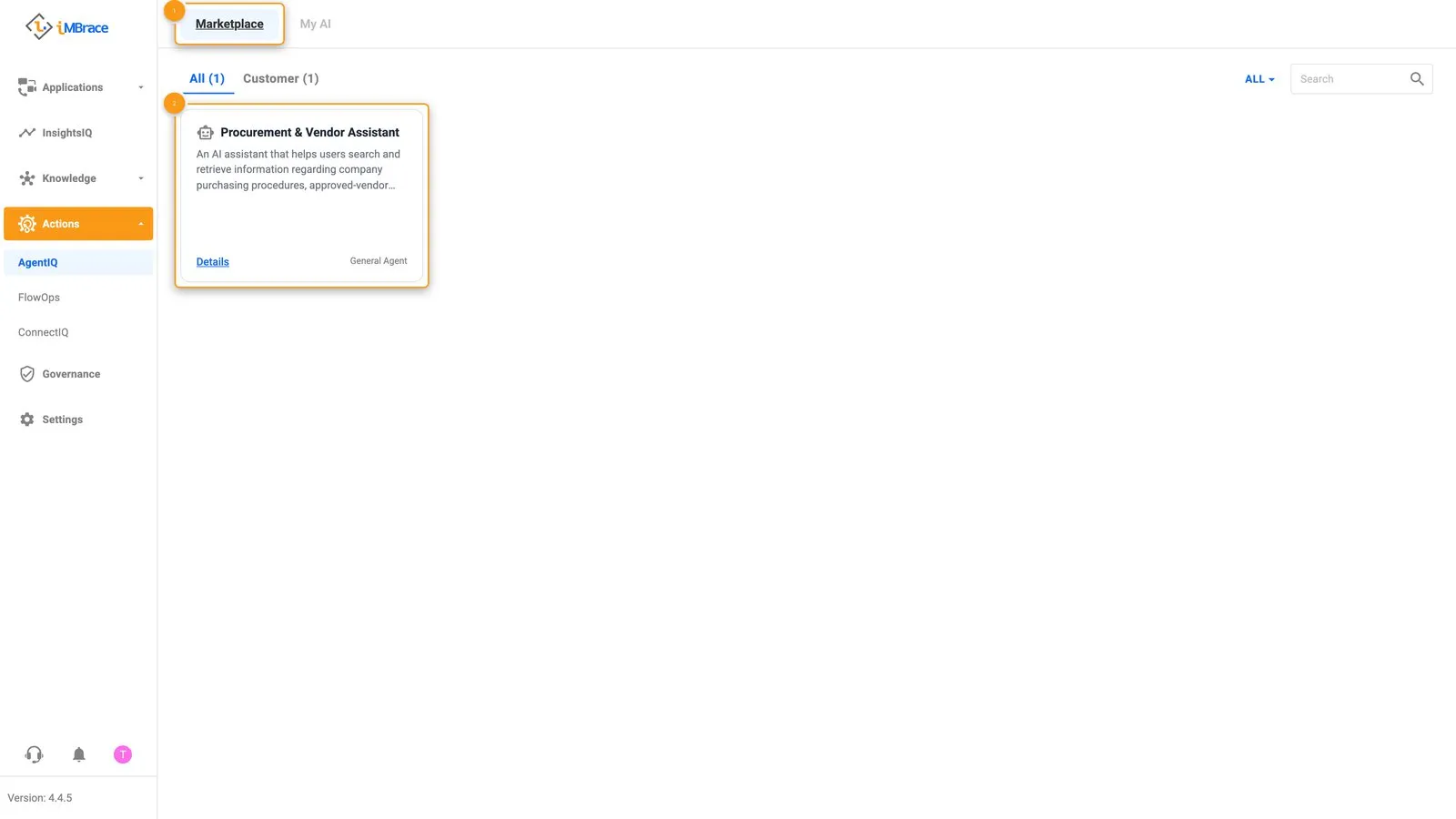 1 The Marketplace tab. 2 The ready-made template card.
Do it in code: SDK overview.
How they fit together
Harbor Bicycle Co.’s return desk, from the tutorial and Make it wait for a person, uses every block at once. A customer talks to the Return Desk Assistant. The agent listens, and its one skill - a workflow called Log return request - writes a new row on the Return Requests board. A second workflow works out the refund from the Refund Rules board. A further workflow asks the duty manager: it emails a card with Approve and Reject buttons and waits. Each button opens a page where the manager confirms; then the workflow carries on from where it paused, records the decision, the reviewer’s name and the time on the row, and emails the customer. Nothing here needed a document model, because nothing arrived as a file - a return that came in as a scanned packing slip would be read by a document model first, and land as a row on that same board.
Every one of Harbor’s blocks could be packaged as a single module and installed into a second organisation, its boards, workflows and agent set-up travelling together for that organisation’s own admin to open and adjust. And the same MCP connection that let a coding tool build all of it in the first place is what lets it check the result afterwards: list the board, read the workflow’s last run.
Build it yourself, one step at a time, in the tutorial, then make it wait for a person in Make it wait for a person.