
Set up your coding tool
Nội dung này chưa có bản dịch Tiếng Việt, hiển thị bằng Tiếng Anh.
Five steps, about fifteen minutes. At the end, your AI coding tool can see what exists in a test organisation and write code against the SDK without guessing.
Direction here, facts there. The SDK, CLI and MCP documentation lives at engineer.imbrace.co and changes on its own schedule. This page names the page to read for each step and copies nothing, because a copied reference goes stale and a stale reference is worse than none.
Last checked against the site: 23 September 2026.
1. A test organisation and an API key
Build in a test organisation, never in production. Treat an API key like the organisation’s own password: it acts with its role’s full access. A production key never goes into a coding tool, a test run, or a pipeline.
A test organisation can live on iMBrace’s cloud or on your own installation - on your own servers or in a private cloud. Whoever runs your installation can create one.
How to generate a key from the dashboard: the API key guide.
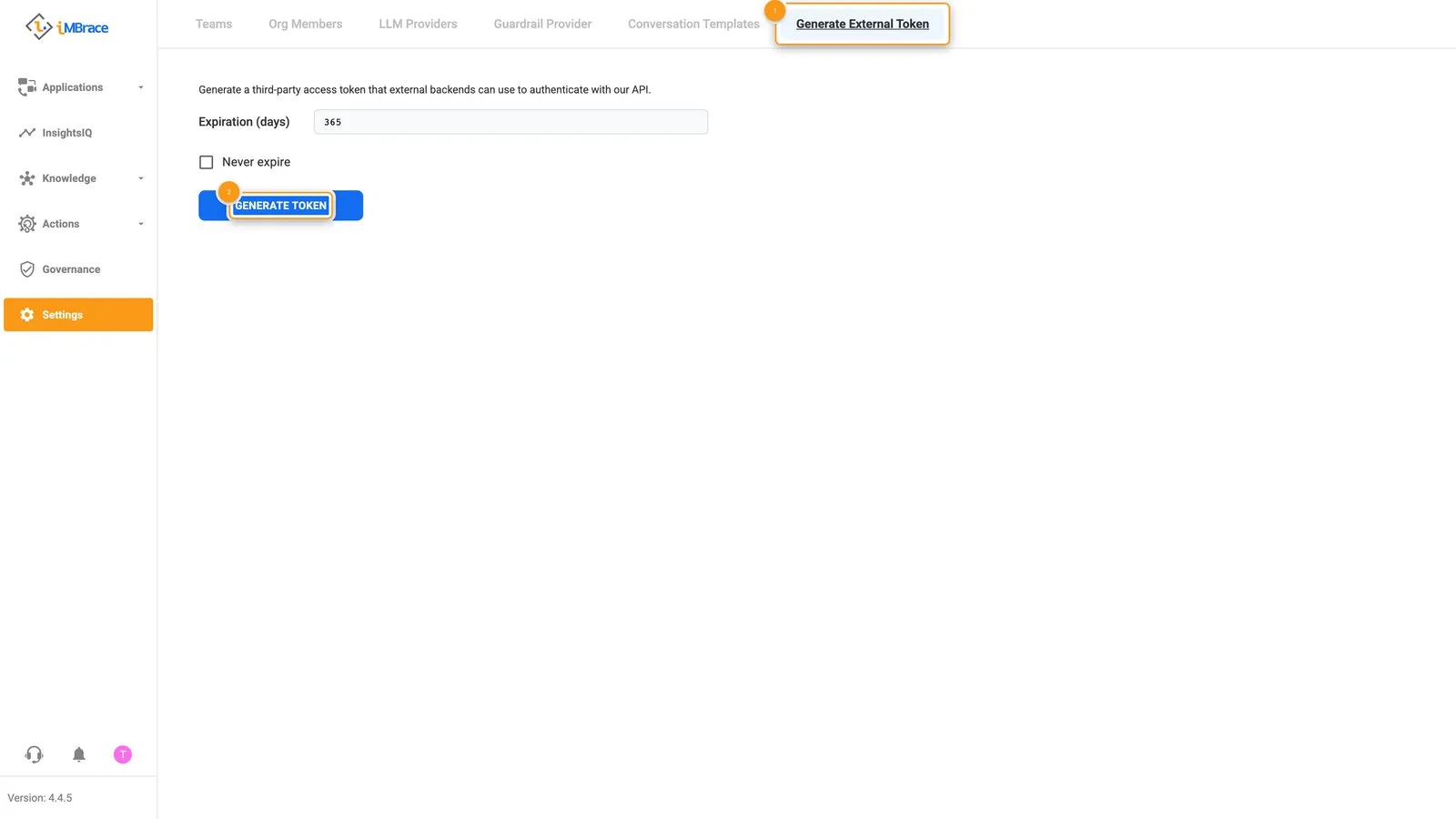 1 Settings > Generate External Token tab. 2 The Generate Token button.
2. Install the SDK and set its credentials
Follow the docs’ Setup Guide: it installs the SDK, sets the credentials and points the client at your organisation. Keep the key in a .env file that is never committed, and give your coding tool the variable names, not the values: a live key pasted into a chat with a coding tool is a key you no longer control.
3. Connect your coding tool to the organisation
The platform’s gateway hosts a Model Context Protocol (MCP) server, so there is nothing to install or run. You give your tool the server’s address and your key, and it then sees what that key’s role allows and no more - and, until you add write access, only the reading side of it (see below).
The per-tool steps are on the MCP page. Follow them there rather than from a copy, because the address and the flags are the site’s to change. If you would rather run a local server, the CLI can do that too.
What the connection covers:
- It is read-only until you add write access. Out of the box your tool can look but not change anything. The MCP page shows the flag that adds create and update, and the one that adds delete. Use them only on a test organisation.
- Agents and file uploads go through the SDK or the platform’s own screens.
- Availability depends on your installation and edition. Whoever runs your installation can confirm it is enabled. Where it is not, your tool works through the SDK or the CLI.
With the connection in place your tool has both halves: this guide answers “how should this be built”, and the organisation answers “what exists here” and “what did that workflow do on its last run”.
4. Give your tool the SDK’s own map
When your tool writes code against the SDK, it should fetch the site’s llms.txt and read the page it points to, rather than answer from memory. The site’s vibe coding guide shows how to hand it over in each tool.
If your machine cannot reach the site - an isolated network, for example - the SDK you installed carries its own description of every method: type definitions in the TypeScript package, readable source in the Python one. Your tool can read those instead. Either way, it must never guess a method name.
5. Prove the setup
Ask your tool two things, then check both yourself:
- “List the boards in this organisation.” It should answer through the MCP connection. On a new organisation an empty list is the right answer, not a failure.
- “Make one read-only SDK call that lists the boards, and show me the output.” The same list should come back through the SDK.
If both agree with what you see in the platform, you are set up. If either fails, it is a credentials or connection problem; fix it here before you build anything.
Next
The tutorial builds a small working agent with your tool, one step at a time. Working with an AI coding tool is the stance that keeps what it builds trustworthy.