
Make it wait for a person
Nội dung này chưa có bản dịch Tiếng Việt, hiển thị bằng Tiếng Anh.
This lesson makes the return desk from the tutorial wait for a person. A new return sends the duty manager an email with two buttons, Approve and Reject, and nothing is promised to the customer until they answer. When they do, the same workflow run carries on: it writes the decision, the reviewer’s name and the time on the row, then tells the customer.
It is a second sitting. Start from the finished desk; nothing you built in the tutorial is thrown away.
What you will build
A return that waits for a person before anything reaches the customer. You play the reviewer, Jordan Vance, the duty manager at Harbor Bicycle Co., from your own inbox.
- A new return lands on the board and its refund is worked out, as before.
- The desk emails the reviewer the facts of the return with two buttons, Approve and Reject, and pauses. While it waits, nothing goes to the customer.
- Each button opens a page that shows the choice. Opening it decides nothing; only the page’s Confirm button does.
- When the reviewer confirms, the same run carries on: it writes Decision, Decided by and Decided at on the row, then emails the customer - the refund amount if approved, a plain apology with no figure if not.
Nobody types into a cell to decide. Nothing here is Harbor Bicycle Co.’s real system - swap the company, the reviewer and the wording for your own before you show this to anyone.
What you need
- The desk you finished in the tutorial, on the same test organisation: the Return Requests and Refund Rules boards, the Calculate refund amount workflow (a new row gets its Refund amount by itself) and the Return Desk Assistant.
- The same AI coding tool, connected to that organisation over MCP with write access, as in the tutorial.
- Two email addresses you can read: one to play the reviewer, one to play the customer. Two addresses that reach one inbox will do, such as an alias of your mail account. Use only your own addresses - never a real customer’s, never a colleague’s.
- An email connection named Gmail on the organisation, or a person who can sign in to make it. Step 1 shows where to look.
A few words this page uses: a run is one go of a workflow, and a run that is paused has stopped at its wait and carries on from the same place once someone answers. The reviewer is the person the email goes to; Decided by records their name. A one-time link is an address that works for one answer and ends in a random code; the desk keeps only a fingerprint of that code, a one-way scramble that can check a code but never give it back. After the answer, the link says the return is already decided. The confirm page is the page a button in the email opens: it shows the choice, and only its Confirm button records it. An approval task is the item the run creates and waits on, with two answers, Approve and Reject; the person answering never has to see it. A decision link is the approval task’s own link for one answer: it decides the moment it is opened, so it stays on a private board (Step 2 builds it) and never goes in an email. A code step is a small step your tool writes, as against a native step the platform ships.
Steps
In the prompts below, square brackets mark a value your tool fills in. The only ones you supply are the two email addresses you read: the reviewer’s in Step 3 and the customer’s in Steps 4 and 5.
1. Get the desk ready
Two small things first: a place for the customer’s address, and the email connection.
You type:
Add a Customer email column (plain text) to Return Requests. Leave every row as it is.
The confirmation email goes to the address on the row, so the desk needs that column. The email itself goes out through the platform’s own connection, never through anything inside a workflow. Open Actions > FlowOps > More > Connections: the email credential is there as its own named connection, Gmail. If it is not, a person has to sign in to Gmail once, in each organisation, to make it - do that before Step 3. Use the button the Connections list offers for a new connection and sign in with a Google account you can read; the desk’s emails go out from that account.
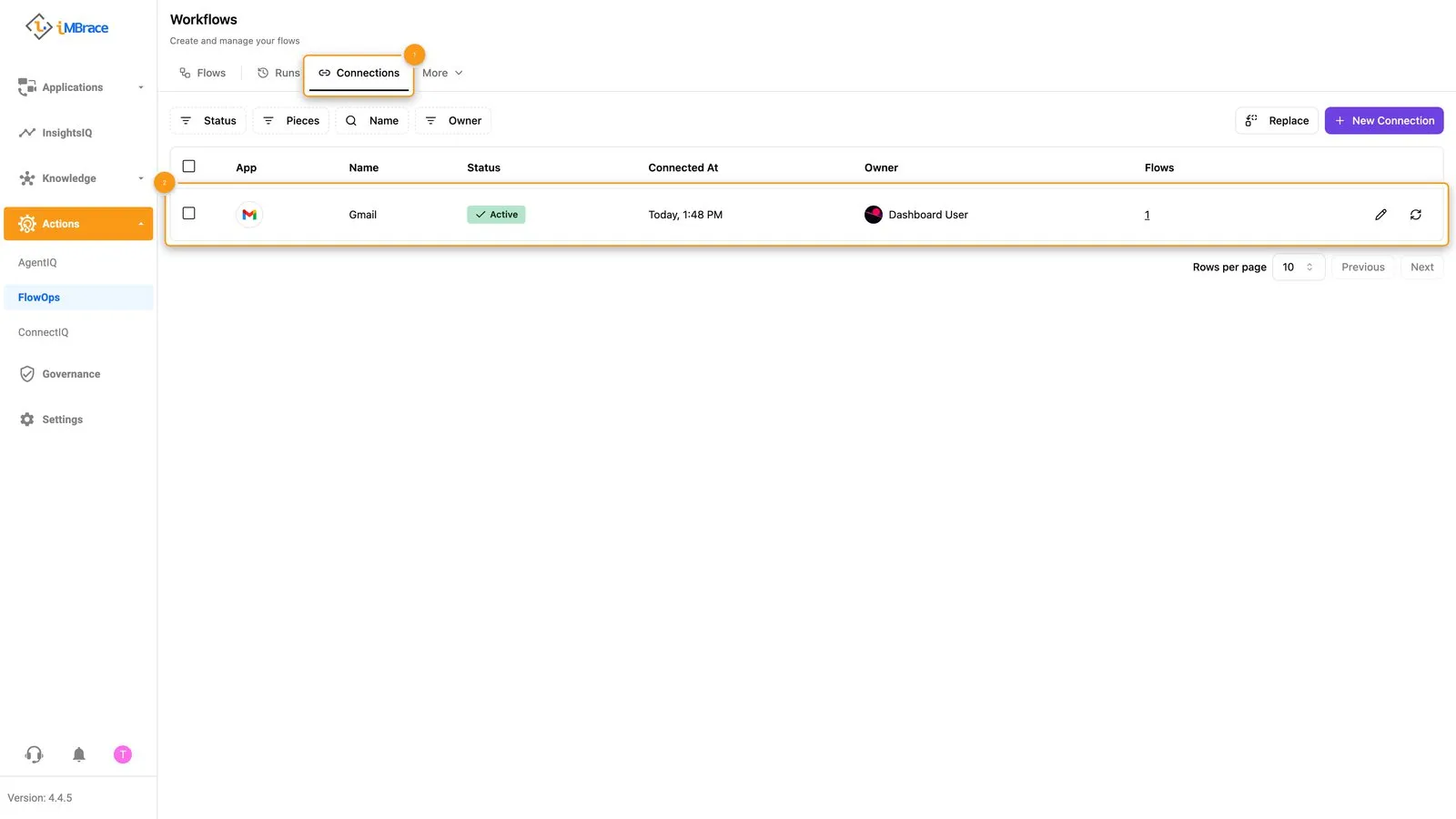 1 FlowOps > More > Connections. 2 The one connection named Gmail.
This lesson is written and checked for a Gmail connection. If you use another kind of email connection, replace the word Gmail in point 9 of Step 3 with its name before you paste, and check that both emails arrive before you trust the run.
This is the tutorial’s first habit, use what the platform ships, carried through: a credential belongs to the platform’s own connection store, never to a workflow. If you export a workflow later, open the exported file and confirm no key or password is inside it.
You should now see: Return Requests with ten columns, Customer email the last, empty on every row; and a Connections list with one connection named Gmail.
2. Build the page where a decision is confirmed
Before anyone can be asked to decide, decide where they answer. The reviewer will decide from an email with two buttons, and each button opens a page on iMBrace that shows the choice and asks them to confirm. This step builds that page and the private board of one-time links it checks. Step 3 builds the workflow that sends the email.
Read the plain-words list under the prompt first, then paste the whole prompt. It is written for your tool, so you do not need to follow every technical word in it.
You paste, in one message:
Build the place where a decision gets confirmed, in two pieces.
First, a private board called Return Decision Links with these plain-text columns: Fingerprint, Group, Action, Order reference, Decision link, Expires at, Used at, Used action, Created at. No Link-type column. Decision link will hold the link that carries the decision of an approval task, which the next step creates. Only workflows use this board; do not give it to any agent.
Second, a workflow called Confirm a return decision that answers as a public page - no sign-in, no key. Use the trigger that answers the caller directly, and reply with raw HTML (content type text/html). The page address takes a random code called t. It works like this:
- Take the code from t (from the address on a visit; from the form field named t when the page’s own button is pressed). Work out a one-way fingerprint of it. Compare fingerprints only; never store or show the code.
- Find the row on Return Decision Links with that fingerprint. No code, or no row: show a plain page that says “This link is not valid.” with no button.
- If there is a row, read every row that shares its Group, and read the return on Return Requests by Order reference. A link is fresh (not used, not expired), used (Used at is filled) or expired (past Expires at).
- A visit only shows a page and changes nothing. Fresh: “Approve return [order reference]?” (or “Reject return [order reference]?”), the customer, the item and the refund amount, one Confirm button that posts the code back, and the line “Nothing is decided until you press Confirm.” Used: “This return has already been decided.” Expired: “This link has expired.”
- Only when Confirm is pressed on a fresh link: first use the link in Decision link (a plain GET with no credentials; carry on if it fails, so you can read its status). If the status is 200 to 299, mark BOTH rows of that Group used (Used at is now, Used action is the action) and show “Return [order reference] approved” (or “rejected”) with a line saying the customer is being emailed. If it fails, change nothing, leave the links usable, and show “Your decision was not recorded. Try the button again in a minute.”
Every path ends in a page. Build the page in one small code step that only turns values into text and escapes every value it inserts: no network call, no credential. Use native steps for the board reads and writes, the call and the responses. When it is published, tell me the page address.
In plain words. The private board comes first. Each row holds one button’s one-time link, kept as a fingerprint and never as the code itself, and that button’s decision link, which Step 3 fills in. A Group ties a return’s two buttons together. Only workflows use the board, so no agent is given it. Then the page, point by point:
- The page reads the code from the link and keeps only its fingerprint, so the code itself is never stored anywhere.
- A link that matches nothing gets a plain “not valid” page and no button.
- A real link is judged fresh, used or expired from the private board; the return’s own row supplies the facts the page shows.
- A visit only shows the facts and a Confirm button. Mail scanners and previews open every link they find, so opening one must decide nothing.
- Confirm is the only thing that decides. The page records the answer first, then retires both buttons, so a return is decided once; if recording fails, nothing changes and the page says so.
Most steps are native. The rest are small code steps that only compute over what they are given; none makes a network call or holds a credential.
You should now see: in Knowledge > DataIQ, a new board, Return Decision Links, with nine
columns and no rows. In Actions > FlowOps, a published workflow, Confirm a return decision;
open the workflow to reach its run history. Ask your tool for the page’s address and open it
in a private window with nothing after the address, then with ?t= and nothing after it,
then with ?t=notacode. Each time you see one plain page that says “This link is not valid.”
with no button. In the run history each visit shows as a finished run, and no board has
changed.
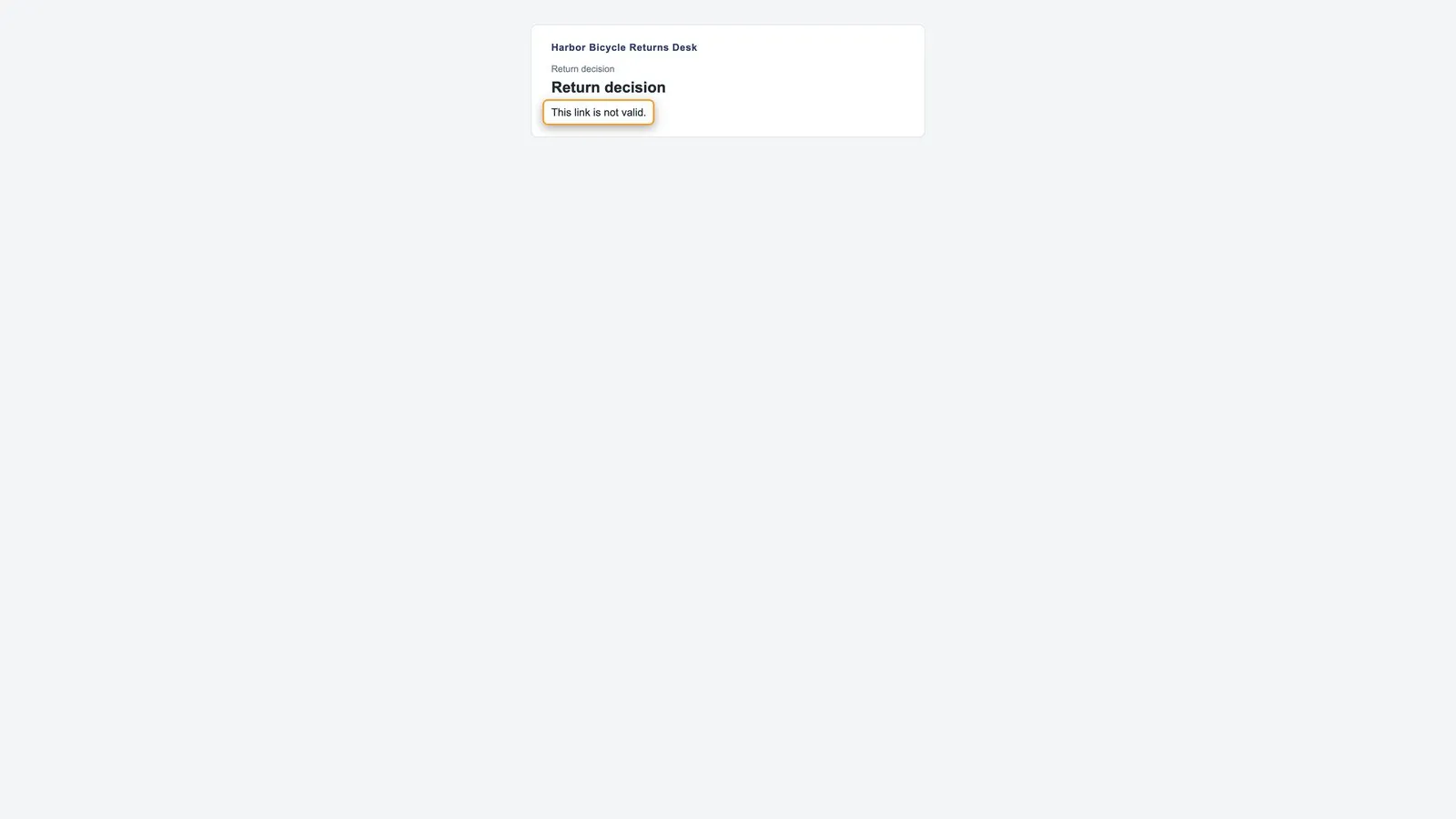 The page opened with no link: one plain sentence and no button.
That plain page is the right first answer: with no link there is nothing to decide, and no button to press. You meet the page with a real link in Step 4.
If you see anything other than that one sentence, tell your tool exactly what you saw and ask it to make the workflow answer with a web page that needs no sign-in, then open the address again before you go on.
The rule behind the page: a link in an email is not a decision. Opening the link only shows a page; only Confirm decides. The random code is never stored, only its fingerprint, and the board that holds the fingerprints is private. Human approval sets out why.
3. Ask by email, wait for the answer, then tell the customer
This is the step where the desk starts to wait. One workflow asks a person by email, stops at a wait, and only when they confirm does the same run write the decision on the row and tell the customer. Give your tool the whole prompt in one message - the asking half and the finishing half belong together - and add no return until it says the workflow is published. The one value you supply here is the reviewer’s address. As in Step 2, read the plain-words list under the prompt first: the prompt is written for your tool.
You paste, in one message:
Build a workflow called Apply return decision that asks a person to decide by email, waits for the answer, then finishes the job. It starts when a Return Requests row’s Refund amount is written - a “column updated” automation on Refund amount, not “row created”. The reviewer is Jordan Vance, at [your own address]. Do this, in order:
- Read the row. Do nothing unless Order reference and Refund amount are filled in and Decision is empty.
- Read Return Decision Links for this Order reference, newest Created at first, one row. If a row comes back and its Used at is empty, or the read fails, someone is already being asked: stop here. No second task, no second email.
- Get the current time (UTC) with the platform’s own date step.
- One small code step turns the row into the decision card: the title “Return [order reference] needs a decision”, a one-line summary, and a table of Customer, Order reference, Item, Condition, Price and Refund amount. No decide-by time on it.
- Create an approval task with the platform’s own task step: that card as its description and two options, Approve (green) and Reject (red). Assign it to the user my API key acts as. Never leave the assignee empty and never assign it to a colleague.
- One small code step makes two random codes, one for Approve and one for Reject, and a one-way fingerprint of each - the same method the confirm page uses. Each one-time link is the Confirm a return decision page address plus ?t= and its code, valid for seven days. The approval task also has its own decision link for each answer, the link that carries the decision: read those in this point and nowhere else, and never put them in an email, a page, a Return Requests row or a reply.
- Write two rows to Return Decision Links with native board steps, one per button: the fingerprint, Group (the task’s id, the same for both), Action, Order reference, Decision link (the approval task’s decision link for that answer, as plain text), Expires at and Created at. Used at and Used action stay empty. Never store a code.
- One small code step renders the same card as an HTML email with two buttons, Approve (green) and Reject (red), each pointing only at its one-time link from point 6, never at a decision link, plus the line “Each button opens a page where you confirm. Nothing is decided by opening a link.”
- Send it with the platform’s own Send Email step for Gmail, through the organisation’s Gmail connection, using the newest version of that step the organisation offers. If there is no email connection yet, stop and tell me: a person has to sign in to make it. Sender name “Harbor Bicycle Returns Desk”, with no comma in it. Subject “Return [order reference] needs your decision”.
- Wait for the approval task (the task step that waits for the answer). Points 5 to 10 must run back to back: nothing between them, and nothing anywhere before point 10 that pauses or sleeps.
When the answer comes back and the run carries on:
- Read the return again by Order reference.
- Act on the answer. Approve or Reject only counts if Decision is still empty and the row you just read is the row that started the run; anything else writes nothing. Approve: get the time (UTC); write Decision “Approved”, Decided by “Jordan Vance (confirmed by email)” and Decided at on the row; only then email the customer at Customer email, subject “Your Harbor Bicycle return is approved”, plain text naming the refund amount. Reject: the same with Decision “Rejected”, subject “Your Harbor Bicycle return was not approved”, and a plain apology that names no refund amount and says to contact the returns desk.
Use native steps for every board read and write, the task, the wait, the clock and the emails. Small code steps only for points 4, 6 and 8.
In plain words, point by point. The asking half:
- Do nothing unless the return is ready: it has an order reference and a refund, and nobody has decided it yet.
- One ask at a time: if this return is already waiting for an answer, stop, so a second write to the row does not start a second ask.
- Read the clock, so the links get an expiry time.
- Put the facts the reviewer needs on one card.
- Create the approval task the run will wait on: an item with two answers, Approve and Reject, owned by the user your API key acts as.
- Make the two one-time links, one per button, and take the approval task’s own decision links. Only this point takes them from the approval task; from then on they live only on the private board, and only the confirm page uses them.
- Save each button’s fingerprint and its decision link on the private board, where the confirm page finds them.
- Turn the card into an email with the two buttons.
- Send it to the reviewer through the organisation’s Gmail connection.
- Wait. The run pauses here and holds its place until the reviewer answers.
The finishing half, after the answer:
- Read the return again, so the run works from the row as it is now.
- Write Decision, Decided by and Decided at first, then email the customer. Only a first answer for the same row counts; anything else writes nothing.
Points 4, 6 and 8 are small code steps of the same kind as the tutorial’s calculation: each only computes over what it is given, makes no network call and holds no credential.
You should now see: in Actions > FlowOps, Apply return decision published, and Calculate refund amount unchanged. Open Apply return decision and read it from the top: the step that creates the approval task, the step that sends the email through Gmail and the step that waits come in that order, with nothing that pauses before the wait. To check it, ask your tool to list the steps of Apply return decision in order, names only, and compare the list with the canvas. Ask it also to confirm that the fingerprint made here uses the same method as the one in Confirm a return decision. Do not add a return yet; Step 4 does that.
If your tool asks a question, answer it. If it builds something that does not match the numbered points, ask it to change the workflow to match them, then read the steps again.
Read a run by the status of each step. A step’s contents can hold the links that decide, so you never need to open one. On a real organisation, let only the people who review builds open the run history and the Return Decision Links board, and clear old runs.
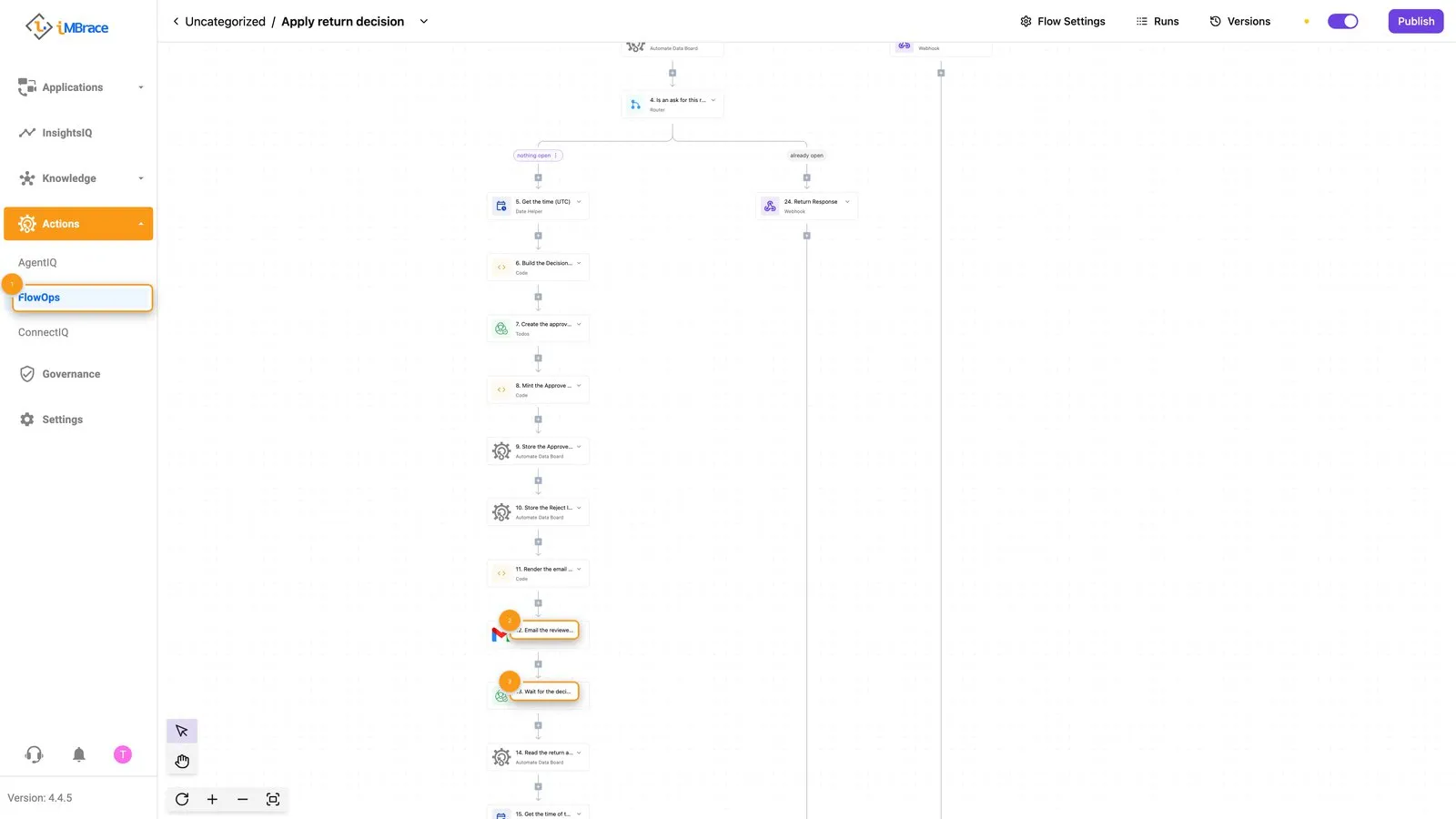 1 FlowOps in the sidebar. 2 The step that emails the reviewer. 3 The step that waits for the decision.
4. Try an approval
Now run it the way the reviewer would. Use a new order reference for every test return, one that is not already on the board: the desk tracks each return by its order reference.
You type:
Add a row to Return Requests: customer Morgan Ellery, order reference HB-3001, item helmet, condition unopened, price 45, Customer email [the address you play the customer from]. Leave Refund amount, Decision, Decided by and Decided at blank.
You should now see, one moment at a time:
- Within seconds Refund amount fills in on the row: 45. Decision, Decided by and Decided at are still empty. In Actions > FlowOps, the run history of Apply return decision shows one new run, and the run is paused. The steps that create the approval task and send the email are marked succeeded. While it waits, ask your tool for the approval task’s status and assignee only: it is open and assigned.
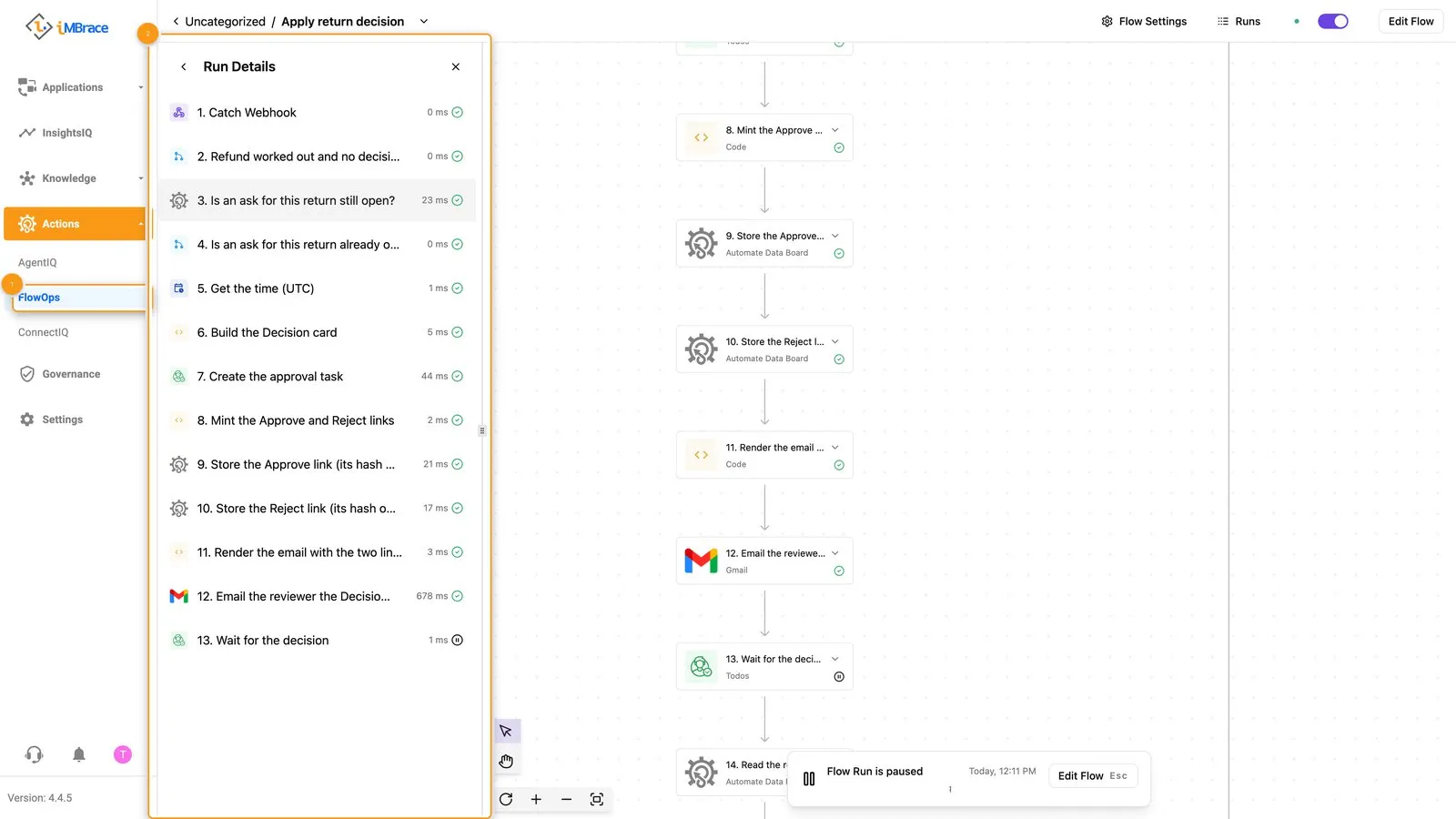 1 FlowOps in the sidebar. 2 The new run of Apply return decision, paused.
- The reviewer’s inbox holds one email, with the subject you asked for. It gives the facts of the return - customer, order reference, item, condition, price and refund amount - and two buttons, Approve and Reject. Return Decision Links now has two rows, one per button, with Used at empty.
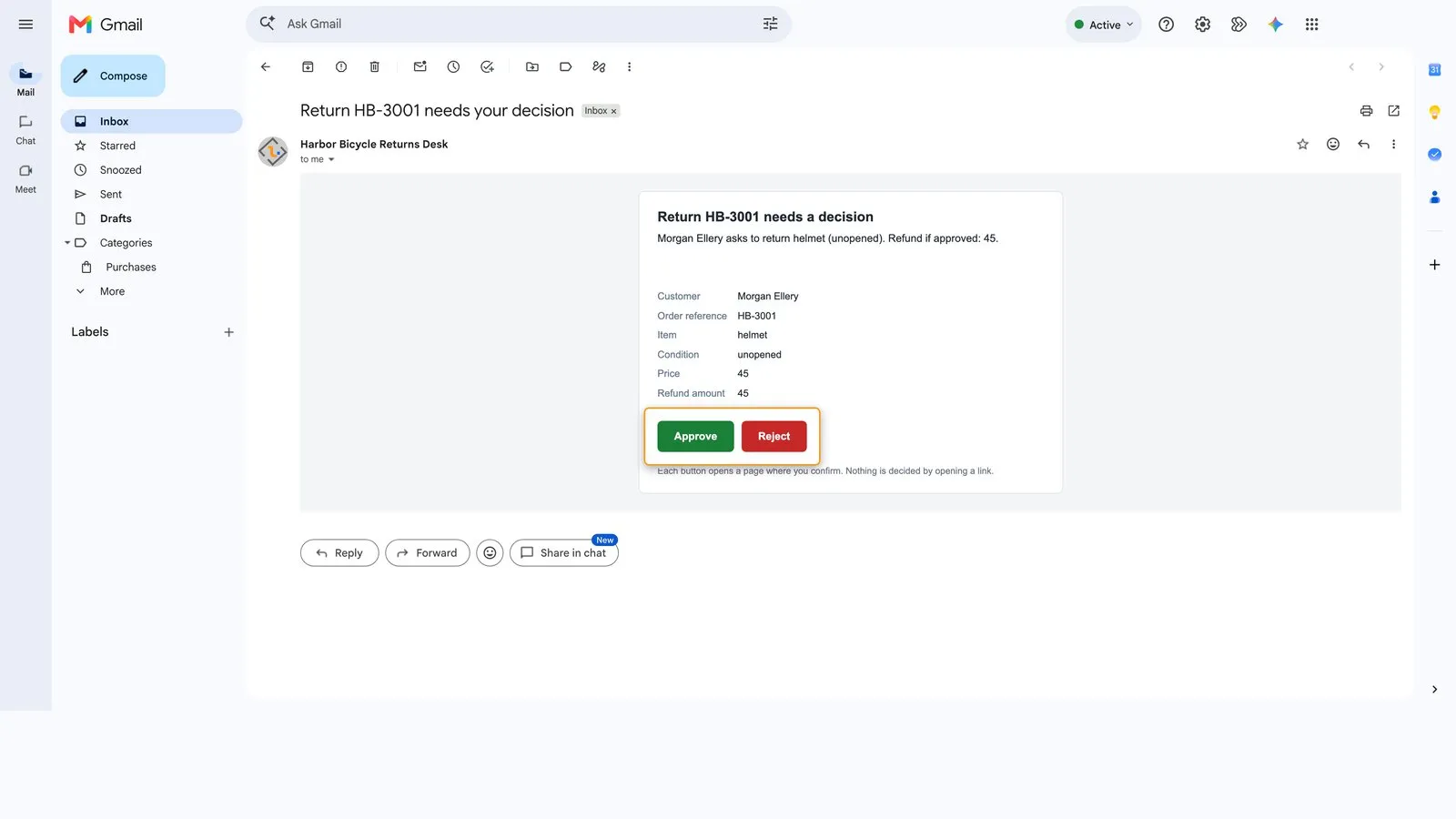 The reviewer’s email: the facts of the return and the two buttons, Approve and Reject.
- Open Approve. A page shows the choice: the customer, the item and the refund amount, with one Confirm button. Nothing has changed. Open it a second time if you like: the run is still paused and the row still has no decision.
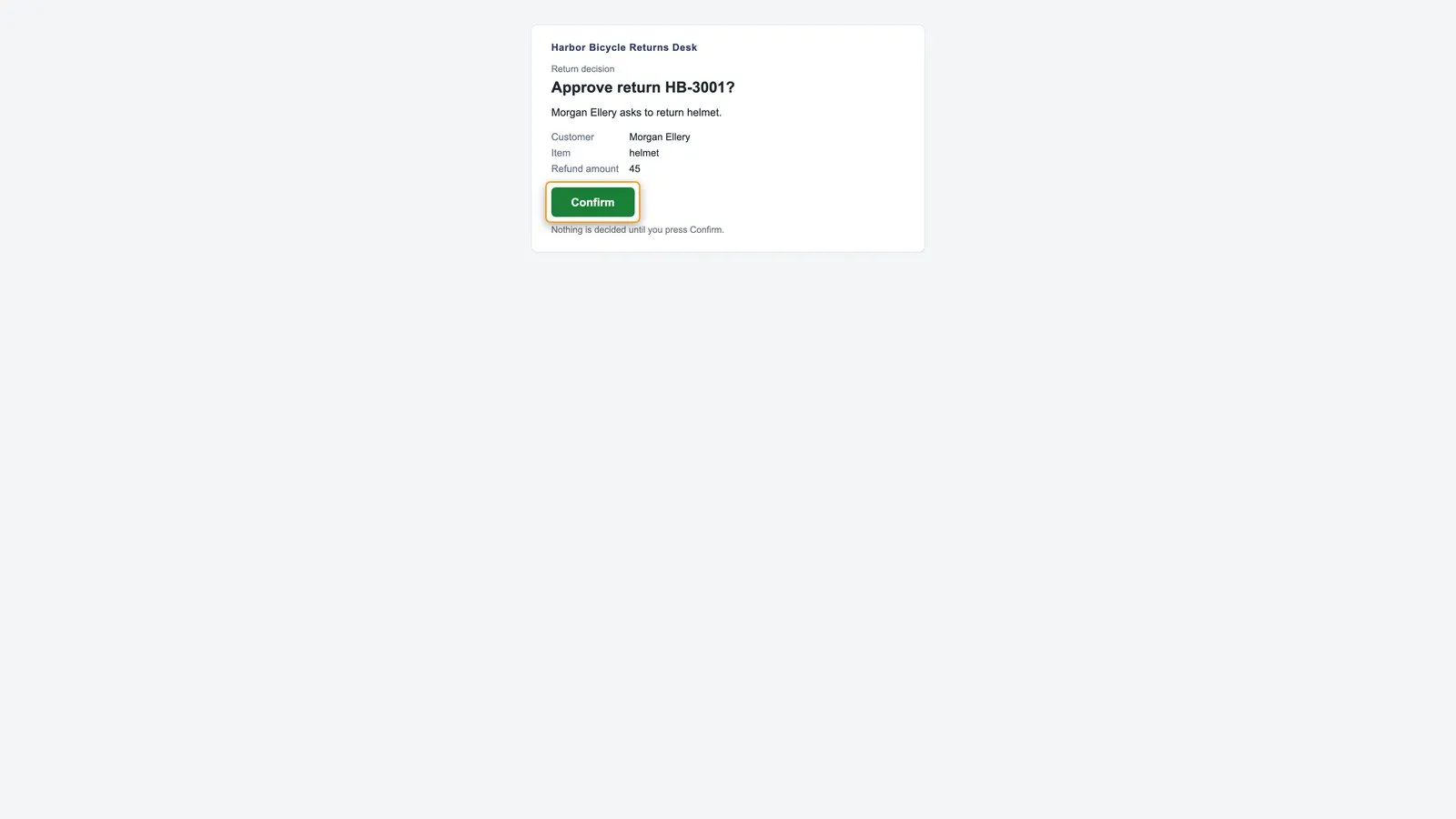 The confirm page: the facts of the return and one Confirm button. Nothing is decided until it is pressed.
- Press Confirm. The page says the return is approved and that the customer is being emailed. In FlowOps the run that was paused is the one that finishes, and no run is left paused for this return. On the board the row now reads Decision Approved, Decided by Jordan Vance (confirmed by email) and a Decided at time. The customer’s inbox holds an email that names the refund amount, and both rows on Return Decision Links have Used at filled in.
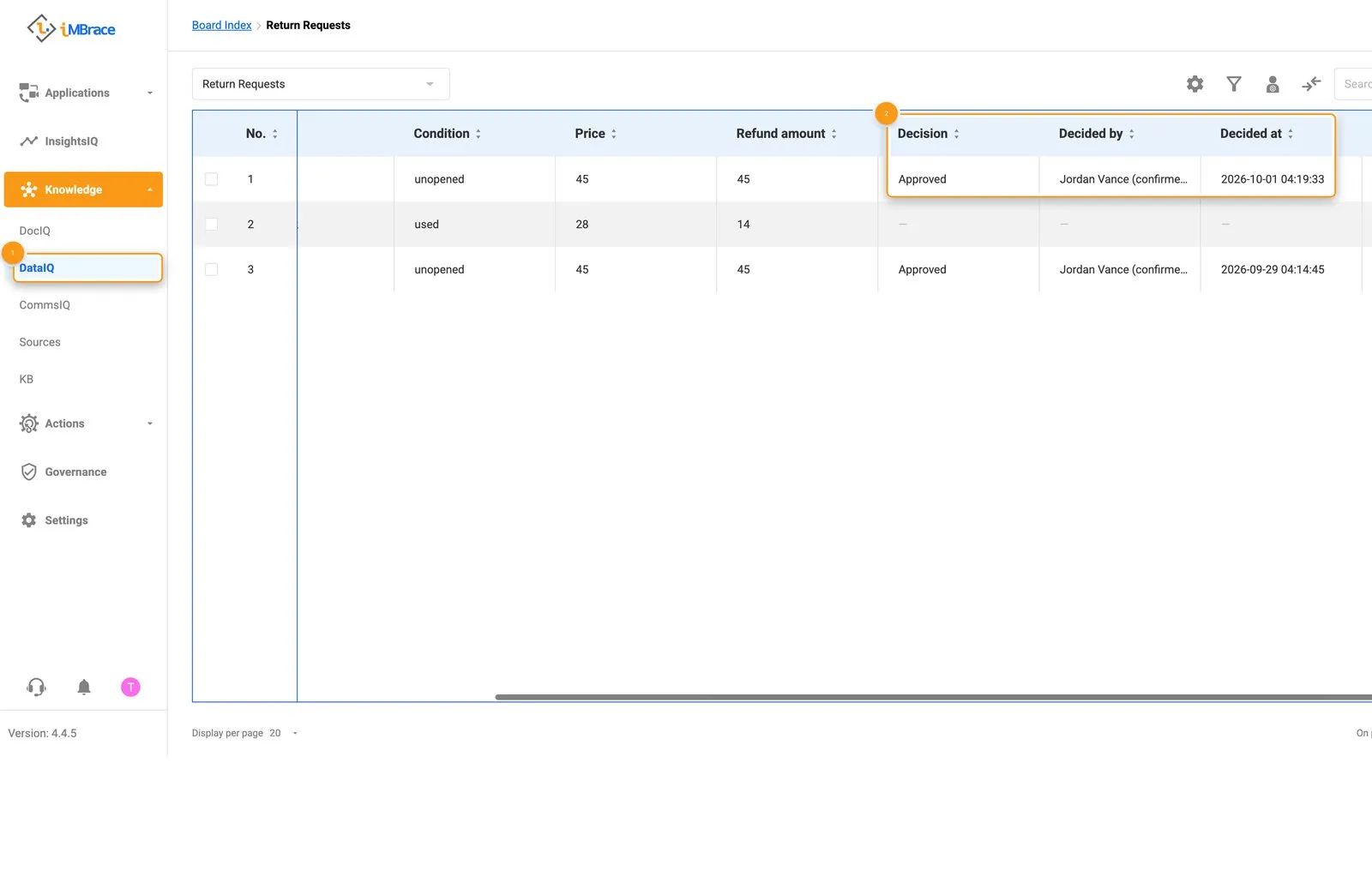 1 Knowledge > DataIQ in the sidebar. 2 Decision, Decided by and Decided at, written by the run.
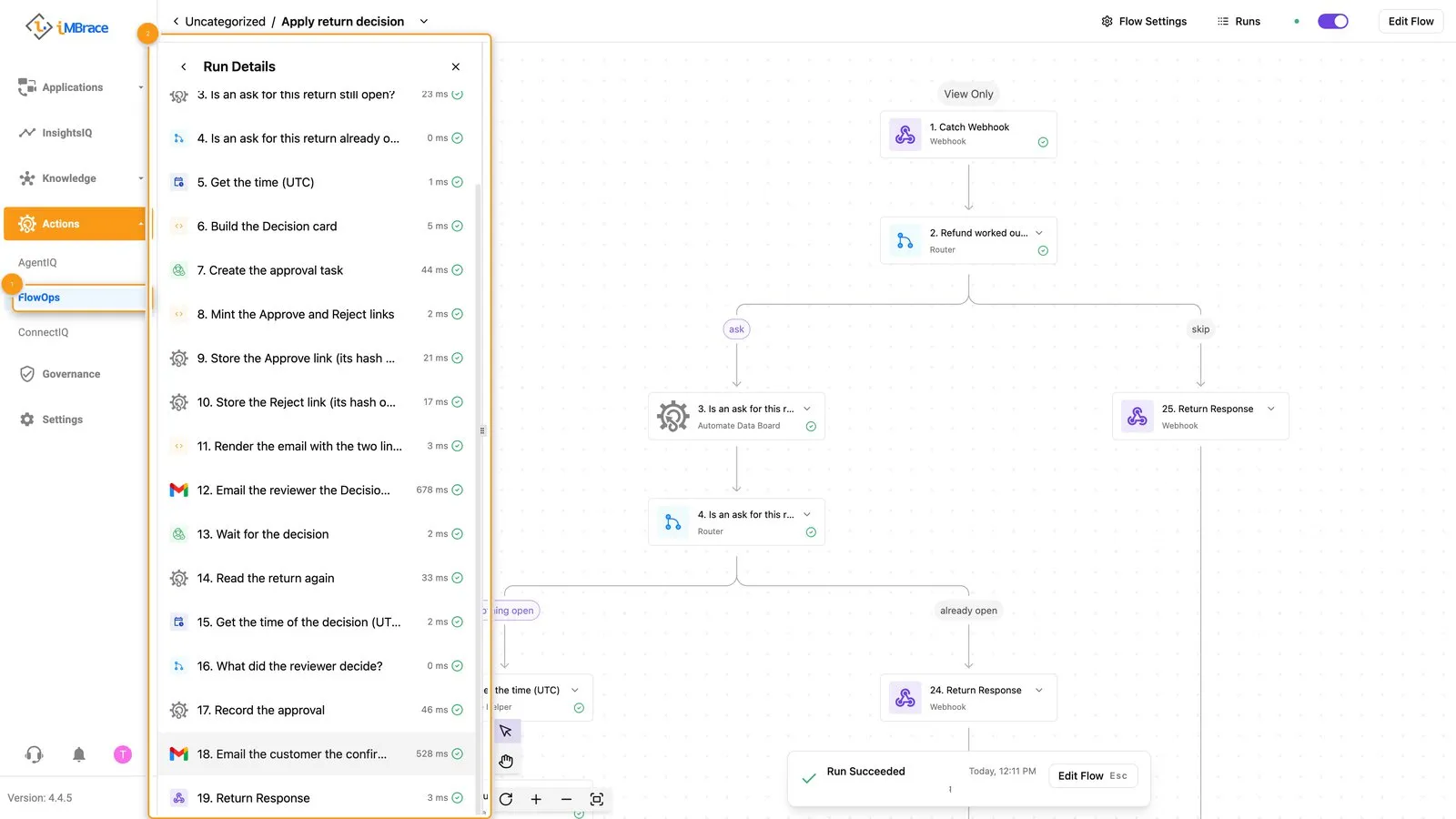 1 FlowOps in the sidebar. 2 The same run, finished, with its two Send Email (Gmail) steps marked succeeded.
- Back in the reviewer’s email, open Reject. The page says this return has already been decided. Both buttons retire together, so a return is decided once.
This is the fifth habit: a decision is a value written on a row by the run that asked - the answer, the reviewer’s name and the time - not a person typing “looks fine” into a chat, and not a cell someone edits. Until somebody answers, nothing goes to the customer and the run simply waits.
Decided by shows the reviewer you named followed by “(confirmed by email)”: the decision was confirmed from that reviewer’s own email, so keep the email to yourself and do not forward it.
If a check in this step does not hold, work back one link at a time. Is Refund amount filled in? Is there a new run of Apply return decision, and is it paused rather than failed? Are the steps that create the task and send the email marked succeeded? Then look in your spam folder. Tell your tool which check stopped and ask it to fix that one thing.
5. Try a rejection
Answer a second return the other way.
You type:
Add a row to Return Requests: customer Riley Okafor, order reference HB-3002, item bike lock, condition used, price 28, Customer email [the same customer address]. Leave Refund amount, Decision, Decided by and Decided at blank.
You should now see:
- The same start as before: within seconds a new paused run, and one email with two buttons in the reviewer’s inbox.
- Open Reject, then press Confirm. The page says the return is rejected. The same run goes from paused to finished, and the row reads Decision Rejected, with Decided by and Decided at filled in.
- The customer’s inbox holds an email that says the return was not approved: a plain apology and a line to contact the returns desk, with no refund figure.
- Open Approve in the same email: the page says the return has already been decided. No approval email went to the customer for this return.
How to check it worked
Do not take your coding tool’s summary of what it did as proof. A plausible account of a working build is easy to produce and easy to mistake for a real one - go and look. You have already run most of these checks in Steps 4 and 5. The extras are the button-address check, the approval-task read-back, one ask at a time, the connection and the assistant. If you run a return again, use a new order reference.
Approve
- It waits. A new run of Apply return decision is paused within seconds, and its steps that create the approval task and send the email are marked succeeded. On the row, Refund amount is filled in, and Decision, Decided by and Decided at are empty. While it waits, ask your tool for the approval task’s status and assignee only: it is open and assigned.
- One email, no shortcut. Exactly one email arrived for the return, with two buttons.
Ask your tool to print the two button addresses from the email you received, with each code
shortened. Each is the confirm page’s address followed by
?t=and one code, and nothing more. Keep the codes to yourself. - A visit decides nothing. Open Approve twice. You get a page with one button, the run is still paused, and both rows on Return Decision Links still have Used at empty.
- Confirm decides. Press Confirm. The run that was paused finishes, and no run is left paused for this return. Decision is Approved, Decided by is the reviewer’s name followed by “(confirmed by email)”, Decided at is a time, and the customer’s address received the email naming the refund amount. Both rows on Return Decision Links have Used at filled in.
- The other button retires. Reject from the same email says the return has already been decided.
- The approval task agrees. Ask your tool for its status only: it now shows answered as Approve. Never print its links.
Reject
- The same start. A paused run and one email with two buttons.
- Reject decides. Press Reject, then Confirm. The same run goes from paused to finished. Decision is Rejected, Decided by and Decided at are filled in, and the approval task shows answered as Reject.
- No figure goes to the customer. The customer’s email says the return was not approved: a plain apology and a line to contact the returns desk. Read it for a refund figure - it carries no mention of a refund amount and no amount equal to the price.
- No approval went out. The customer received no approval email for this return, and the Approve button now says the return has already been decided.
One ask at a time, the connection and the assistant
- Add one more return and leave it waiting. Use this return only for this check and leave it unanswered. Change its Condition. No second email arrives and the first run is still paused. A second, short run may appear and finish at once: point 2 of Step 3 stops it.
- Open Actions > FlowOps > More > Connections and confirm the email credential is a named connection, Gmail, not text inside a step.
- Ask your tool to read the Return Desk Assistant’s setup back: one skill, Log return request, and no board, so the links and the decision stay with the workflows.
If any of these do not hold, that is more useful than a build that looked fine and was not. Fix the one thing that failed and check again.
What to do next
- Leave a return unanswered. The run stays paused and nothing goes to the customer while it waits. The links you asked for in Step 3 are valid for seven days.
- Talk to the Return Desk Assistant with a new, made-up return and watch the run history of Apply return decision. Before you decide a return the assistant logged, add the customer address in Customer email on its row.
- Read Human approval for the method behind this lesson: where a decision is placed, what makes a gate hold, and how to prove it is wired end to end.
- See The building blocks for where each part of the desk lives on screen: the boards, the workflows, the agent and the email connection.
- For anything about the SDK, the CLI or the MCP connection itself, engineer.imbrace.co is the source that stays current - this page will drift before that one does. Set up your coding tool has the set-up in full.