
Vibe coding on iMBrace - Build it
Nội dung này chưa có bản dịch Tiếng Việt, hiển thị bằng Tiếng Anh.
This is Level 2 of the course: Build it. Earlier levels show a use case working end to end; this page has you build one yourself.
By the end you will have a small working return desk on your own test organisation: two boards, a refund rule anyone can edit, a calculation and an assistant that takes a return in conversation. It is small on purpose. The point is not the desk - it is four habits that make anything you build on iMBrace easy to trust, which Level 3 (Build it well) then covers in depth. The next lesson, Make it wait for a person, builds on this desk and adds the fifth: a person decides before anything is promised to the customer.
What you will build
Imagine a fictional company, Harbor Bicycle Co., that sells and services bicycles online. You are building their return desk. A customer writes in asking to return an item. The desk should:
- Log the request as a row on a board, instead of leaving it in a chat transcript.
- Work out the refund amount from a rule anyone at Harbor could edit, not from the model’s own arithmetic.
- Have an assistant take the return in conversation: it logs the return, names no refund figure and promises nothing - a person has not decided yet.
The desk stops there on purpose. Decision, Decided by and Decided at stay empty: they are the record that Make it wait for a person fills in when a person answers an email - never by typing into a cell.
Nothing here is Harbor Bicycle Co.’s real system - it does not exist. Swap the company, the items and the rule for your own before you show this to anyone.
What you need
-
A test organisation and an API key. If you do not have one yet, the API key guide shows how to generate one from the dashboard. Use a test organisation’s key here - never a production one.
-
An AI coding tool connected to that organisation over MCP, so it can see your boards and workflows directly instead of guessing. This page names no tool; any coding assistant that can hold an MCP connection and read a text file works. The MCP guide has the exact connection steps for your tool - do that first, before Step 1 below. If MCP is not enabled on your installation, Set up your coding tool shows the SDK route.
-
If your tool prefers to write real SDK code rather than call the platform directly, install the SDK for your language:
Terminal window npm install @imbrace/sdkTerminal window pip install imbraceEither way, your tool will end up needing two environment variables:
IMBRACE_API_KEYandIMBRACE_ORGANIZATION_ID. Keep them in a local.envfile that is never committed anywhere, and never paste a live key into a chat with your coding tool if you can hand it the variable name instead. -
About an hour. Most of it is reading what the platform hands back to you, which is the habit this whole page is trying to build.
A few words this page uses: a board is a structured table you shape yourself - rows and typed columns, like a lightweight CRM sheet. A workflow (also called a flow) is a sequence of steps that runs on its own once triggered. A native step is a ready-made step the platform ships - nothing to write, nothing to host, no key of your own to manage. An agent is the conversational front end a person or a channel talks to.
Steps
1. Look before you build
Do not open an editor yet. Ask your coding tool what already exists.
You type, roughly:
Before we build anything: what boards already exist in this organisation? And search the platform’s catalog of native workflow steps for anything related to sending an email and reading one.
You should see: on a new test organisation, an empty list of boards - that is expected, not a failure. On an organisation that already holds other work, other boards appear at this first check instead - that is fine too; once you create yours in Step 2, look for it there by name. Either way you should also see a short list of native steps for email, likely alongside other channels you did not ask about. Read the list. This is the first habit: find the node the platform already ships before you consider writing one yourself. A step your tool writes from scratch costs you a credential to hold and a piece of code to maintain; a native step costs neither. The email steps on that list are the ones Make it wait for a person uses.
2. Create the board that holds return requests
You type:
Create a board called Return Requests with these columns: Customer name, Order reference, Item, Condition, Price, Refund amount, Decision, Decided by, Decided at.
You should see: a new board in your organisation with those nine columns and no rows yet. Open it in the platform and check the column names and types by eye - do not just trust your tool’s summary of what it did. The last three columns, Decision, Decided by and Decided at, are the record of a person’s answer: nothing in this lesson fills them in, and Make it wait for a person does.
If your tool says it cannot create anything, its MCP connection is read-only - that is the default. Add write access as the MCP page describes (a flag on the connection address), and only ever on a test organisation.
3. Add two test rows
Use synthetic data. Never real customer or order information, even in a test organisation.
You type:
Add two rows to Return Requests. Make up obviously fake customer names and order references. Row one: an unopened helmet, price 45. Row two: a used bike lock, price 28. Leave Refund amount, Decision, Decided by and Decided at blank.
You should see: two rows, Condition set to “unopened” and “used”, Price filled in, the last four columns empty.
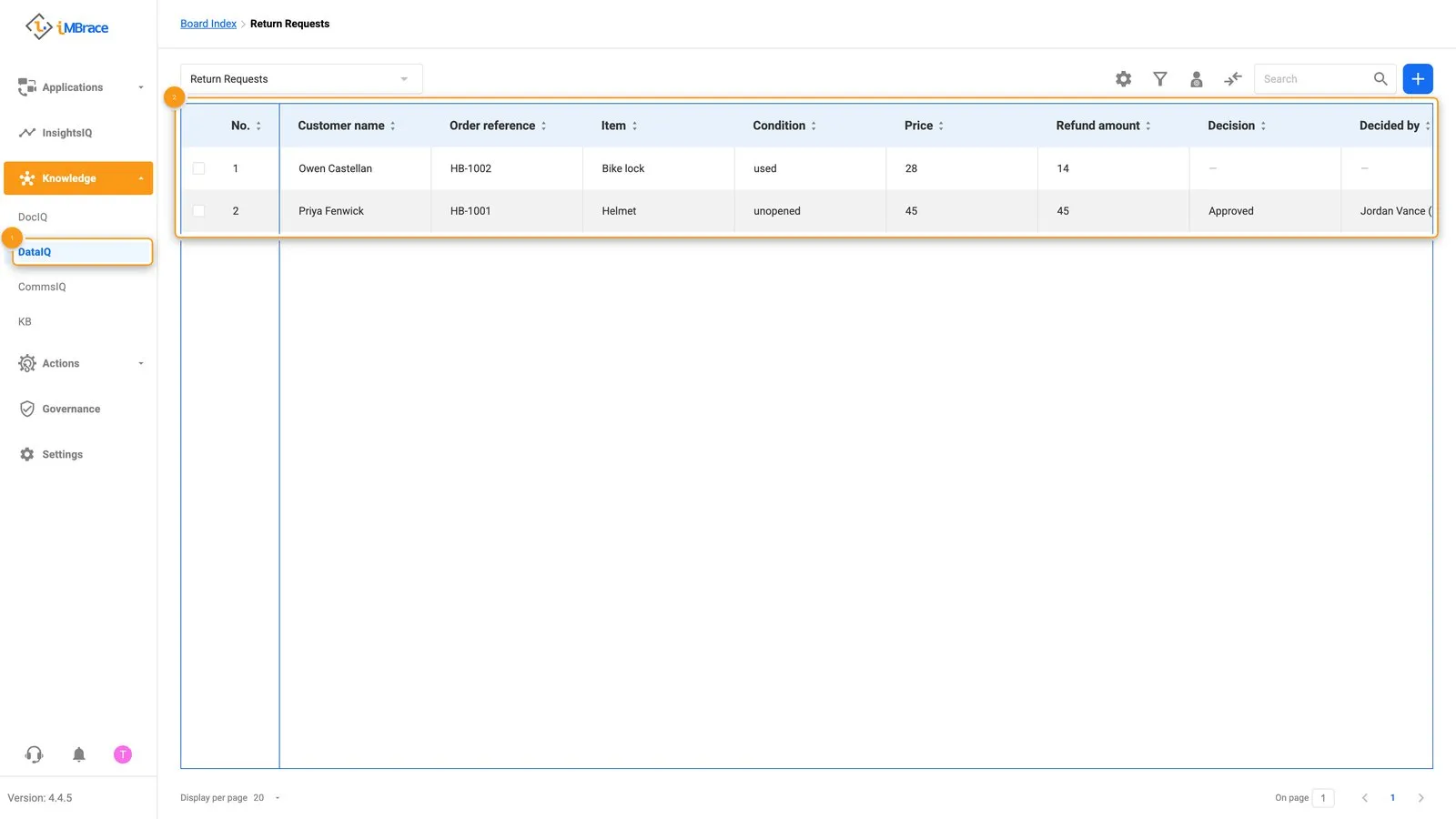 1 Knowledge > DataIQ in the sidebar. 2 The Return Requests board’s columns and rows.
4. Put the refund rule where a person can change it, not in a sentence
This is the second habit, and the one that matters most on this page. It would be faster to tell the agent “refund in full if unopened, half if used” in its instructions. Do not. A rule written into an agent’s instructions cannot be edited by anyone who is not editing the agent, cannot be quoted back to a customer, and cannot be audited later. A rule that lives as a row can be all three.
You type:
Create a second board called Refund Rules with two columns, Condition and Refund percent. Add two rows: unopened, 100. used, 50.
You should see: a two-row, two-column board. Anyone at Harbor Bicycle Co. could open this and change 50 to 60 without touching a workflow or an agent.
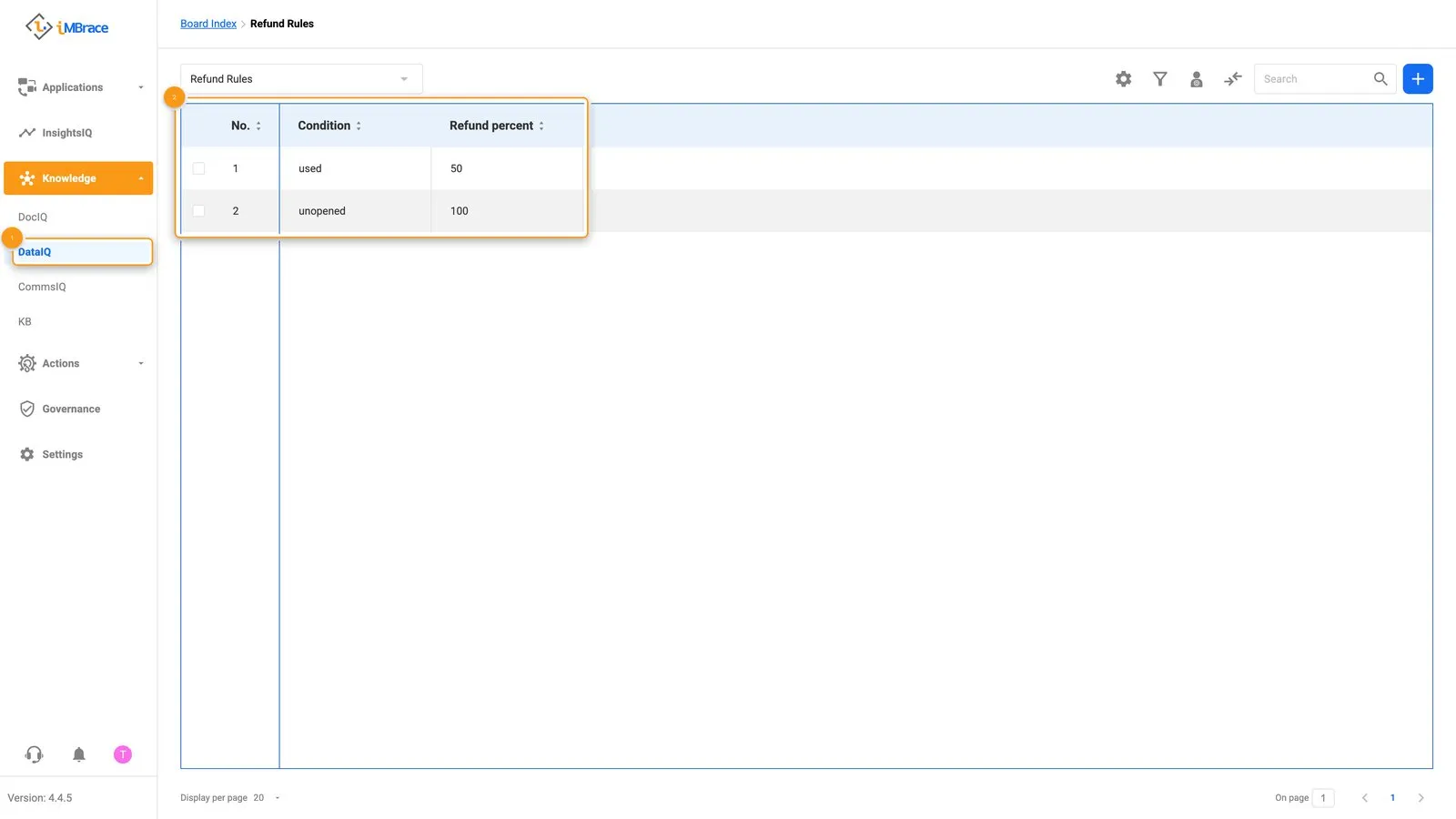 1 Knowledge > DataIQ in the sidebar. 2 The Refund Rules board’s two rows.
5. Build the workflow, and let one small step do the arithmetic
You type:
Build a workflow called Calculate refund amount on the Return Requests board that runs when a row is added or changed. It should: read the row’s Condition, look up the matching row on Refund Rules, multiply Price by Refund percent using a plain calculation step, and write the result into Refund amount. Use native steps for the board reads and writes. Only the multiplication itself should be a step you write, and keep it pure - it takes the two numbers in, returns one number out, and touches nothing else. No network call, no credential, inside that step.
You should see: a workflow you can open in the platform’s own editor and read top to bottom without opening any code. Most of its steps are native. Exactly one step is the short calculation your tool wrote, and it is short enough to read in ten seconds. Run it once by hand if your tool offers a test-run option, and check Refund amount lands at 45 for the unopened helmet and 14 for the used lock.
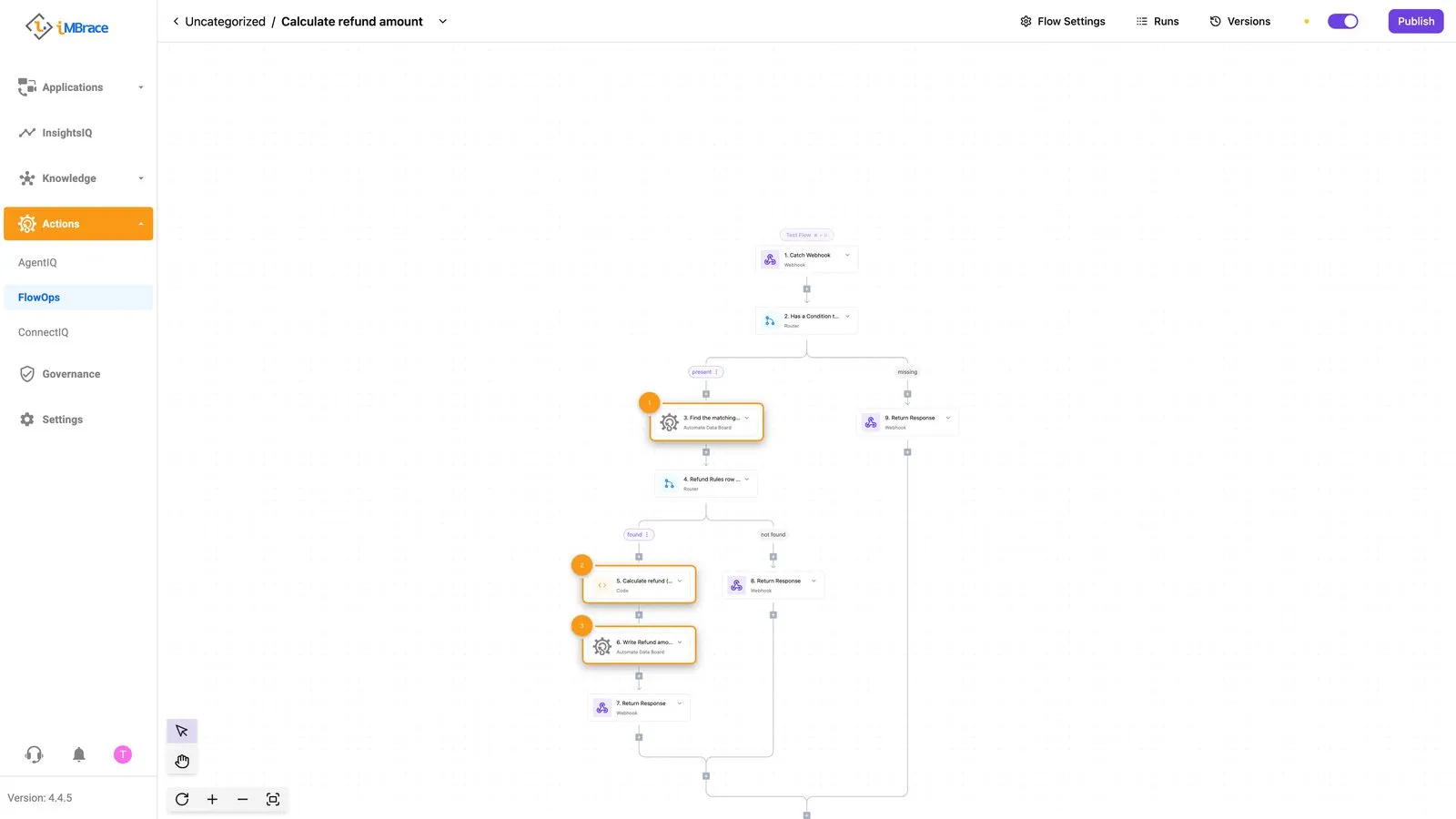 1 Find the matching row on Refund Rules (native). 2 Calculate refund - the one step written by hand. 3 Write Refund amount back to the row (native).
This is the third habit: a model is good at deciding which rule applies and bad at being trusted to multiply correctly under pressure, silently, every single time. Let a calculating step do the arithmetic. Ask the model to decide; let code compute.
6. Create the agent
Agents are created with the SDK’s AI agent methods (the site has them) or in the platform’s agent screens, so this step uses one of those. Either way, your tool can write the agent’s instructions.
You type:
First build a workflow called Log return request that the agent can call as a tool. It takes Customer name, Order reference, Item, Condition and Price, creates one row on Return Requests with only those five values, and writes nothing else. Then create an AI agent called Return Desk Assistant and give it that one tool - not the board itself. Its job: when a customer describes an item they want to return, log it with the tool and reply that their request is being reviewed. It must never state a refund amount and never promise anything - a human has not decided yet.
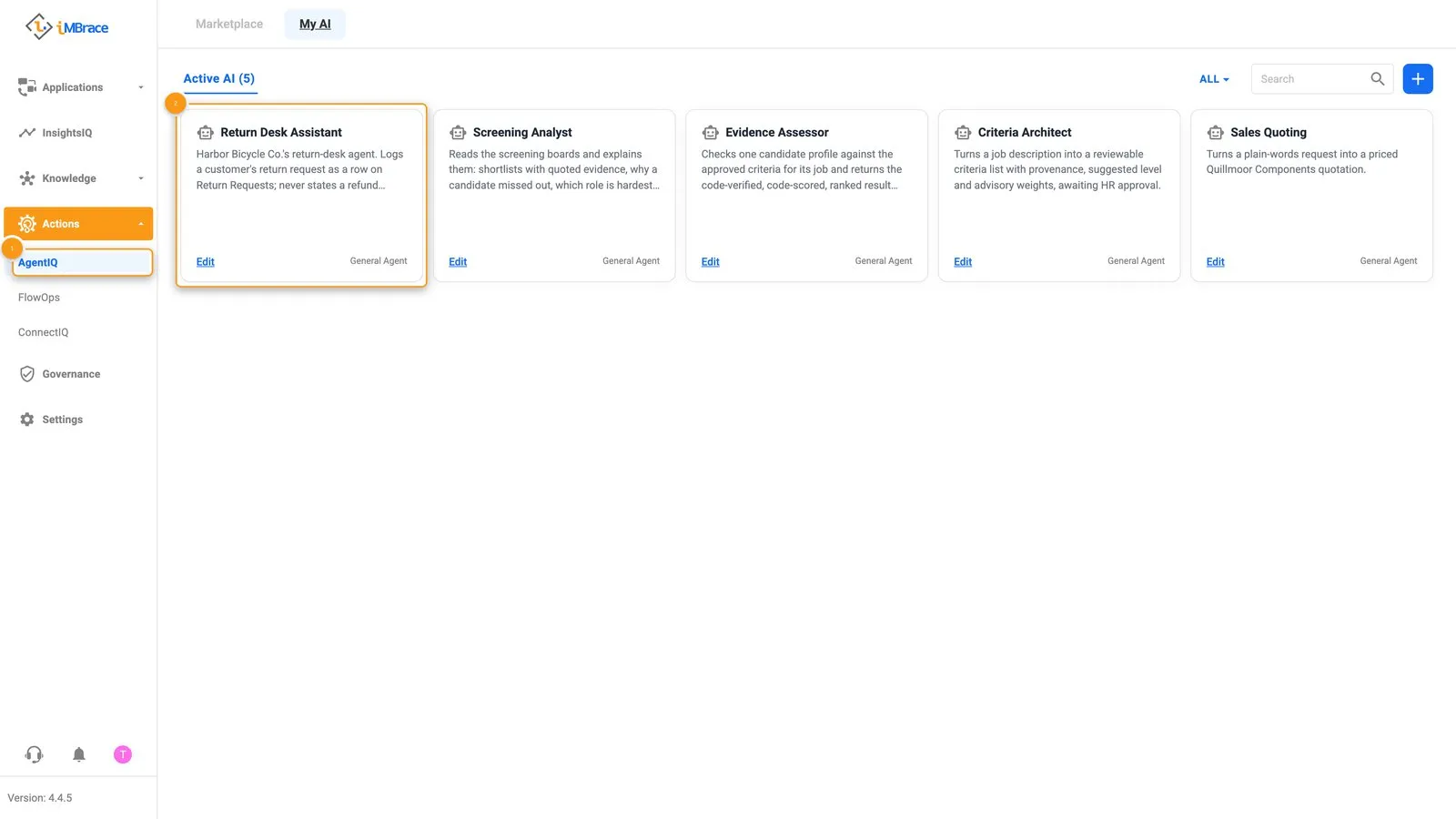 1 Actions > AgentIQ in the sidebar. 2 The Return Desk Assistant agent’s card.
Why a tool and not the board: an agent given the whole board can write any column on it, including Decision - it could approve its own request. The tool can only write the five columns a customer supplies, so the decision stays with a person (the next lesson builds how a person decides). This is the fourth habit: give an agent one narrow tool for the one thing it must do.
One more point worth building into the agent’s own instructions: Refund Rules is matched by an exact value, so tell the agent to write Condition using the rule’s own two words - “unopened” or “used” - never the customer’s own phrasing or a translation of it. Any board a natural-language agent writes to, when a workflow looks a row up by exact match, needs the same care.
You should see: chatting to the new agent with something like “I’d like to return order HB-2044, a helmet, still unopened. My name is Morgan Ellery and it cost 39” produces a new row on Return Requests with those details filled in, and a reply along the lines of “your return request has been logged and is being reviewed by the team” - no number, no promise. A few seconds later Refund amount fills in on that row by itself: 39 for the unopened helmet. Nobody reviews the request yet; Make it wait for a person adds the person who does. If your tool’s draft instructions let the agent guess a refund figure itself, that is worth catching here: send it back and ask for the number to be removed from what the agent is allowed to say. Then ask it to approve the request itself: it must not be able to, because nothing in its tool can write Decision.
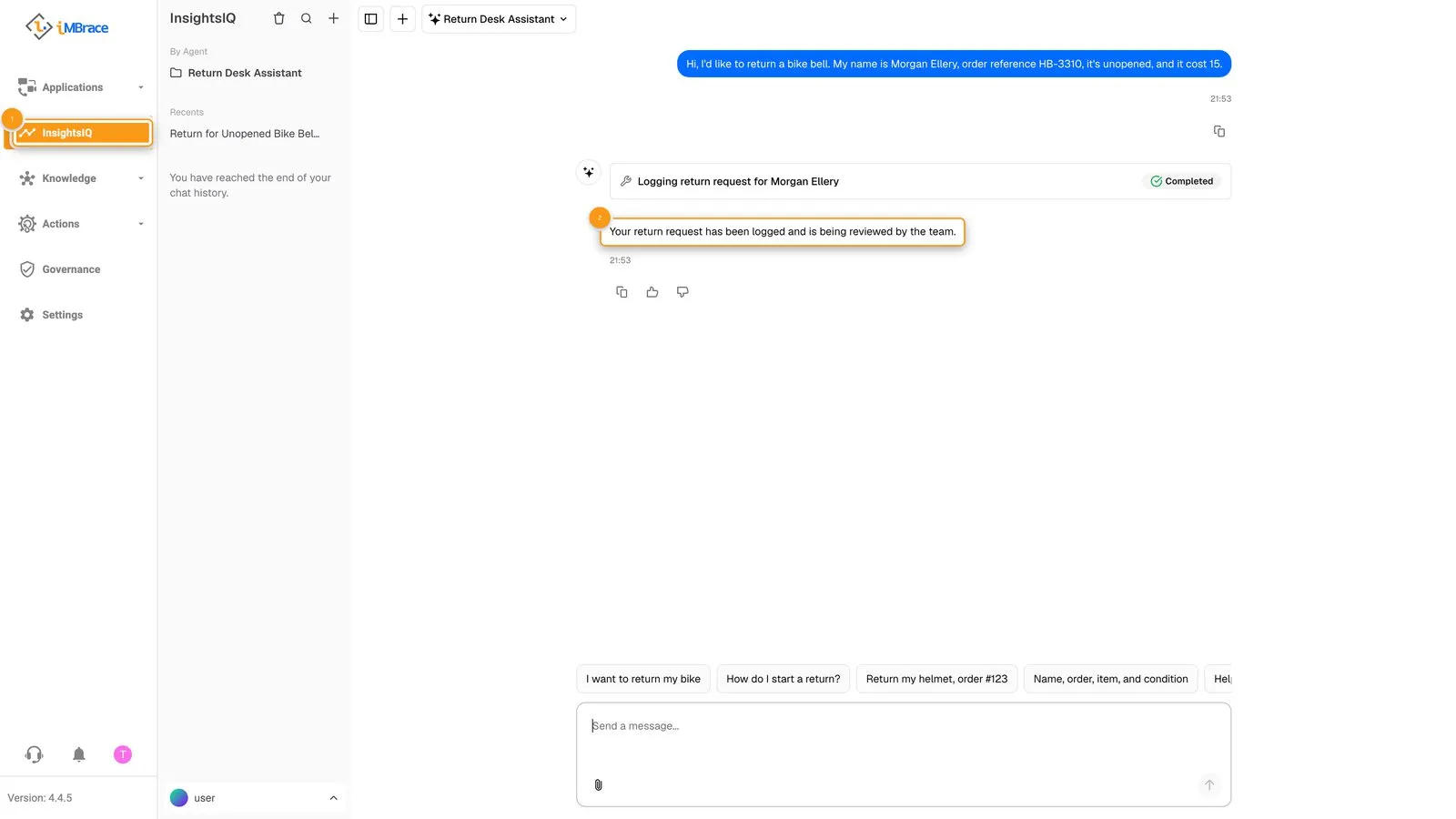 1 InsightsIQ in the sidebar. 2 The assistant’s reply names no refund figure and makes no promise.
How to check it worked
Do not take your coding tool’s summary of what it did as proof. A plausible account of a working build is easy to produce and easy to mistake for a real one - go and look.
- Open Return Requests. Both rows should show a correct Refund amount: 45 and 14. Decision, Decided by and Decided at are empty on both.
- Open the run history of Calculate refund amount and read the actual status of each run, not a summary of it: each run shows as finished.
- Talk to the Return Desk Assistant with a new, made-up return. Confirm a row appears, its Refund amount fills in by itself a few seconds later, and the agent’s reply carries no figure and no promise.
- Ask the assistant to approve a request. Confirm Decision stays empty: the agent has no way to write it.
If any of these do not hold, that is more useful than a build that looked fine and was not. Fix the one thing that failed and check again.
What to do next
- Go on to Make it wait for a person, a second sitting. It starts from this desk and makes it ask a person by email before anything is promised to the customer.
- Try a second condition - a part returned with a missing box, say - and a second rule row. Confirm you can change the refund rate without touching the workflow or the agent.
- Read Level 3, Build it well, for the fuller method behind these habits - it covers what makes a build like this one survive being handed to a real customer, not just a test organisation.
- For anything about the SDK, the CLI or the MCP connection itself, engineer.imbrace.co is the source that stays current - this page will drift before that one does. Set up your coding tool has the set-up in full.